Appearance
Organizing Actions
PopClip 2026.7 introduced a whole new way to organize your actions. There is no limit on the number of actions you can have, and you can arrange them exactly how you like, with folders and separators, custom names and icons.
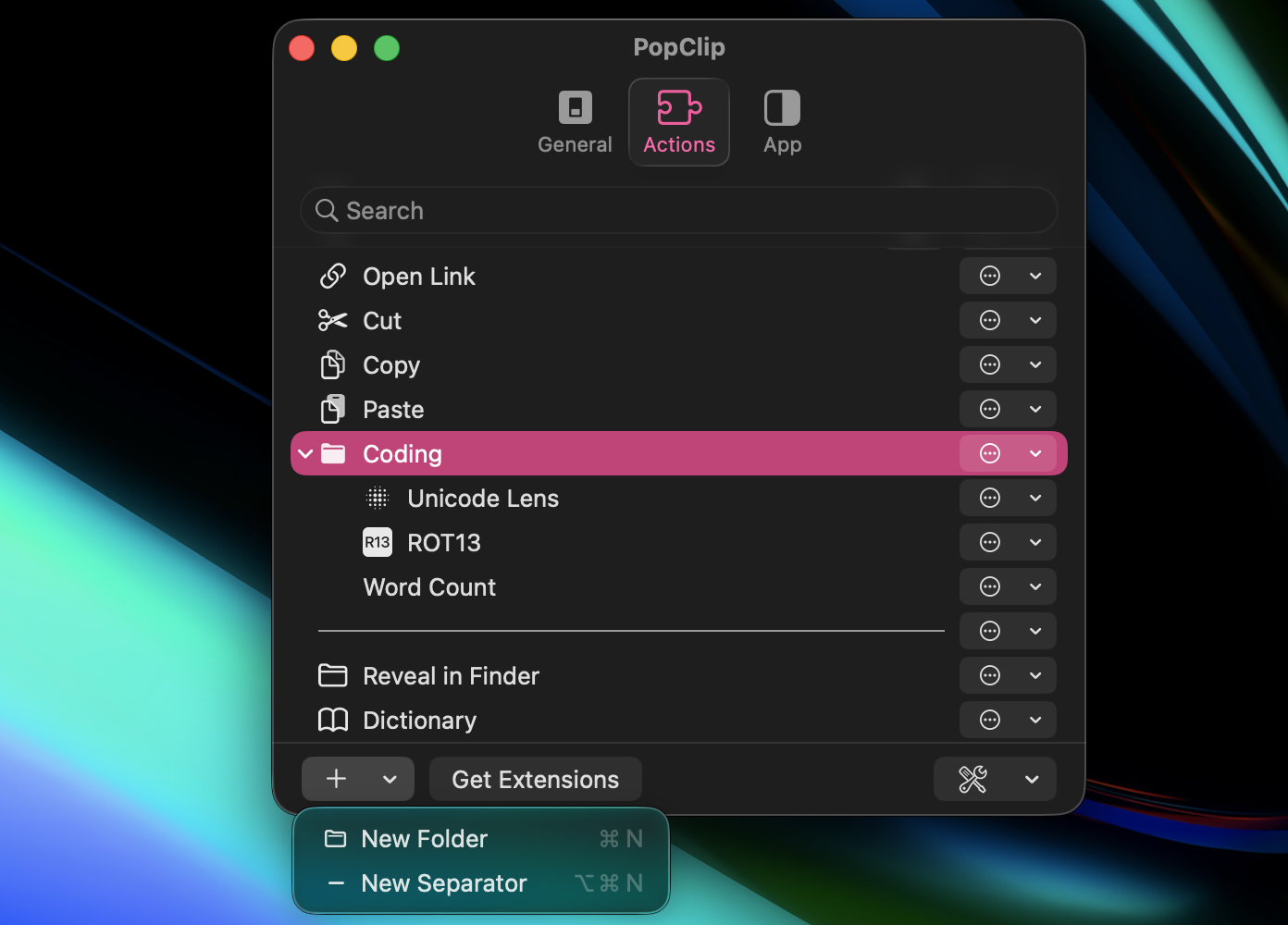
All of this happens in the Actions tab of PopClip's settings, which shows every action in the order it appears in the PopClip bar.
The actions list
Each row of the list is an action, a folder or a separator.
- Click the gear button (
) next to an action name to open the action's settings.
- Click the menu button (
), or right-click any row, for a menu of commands: Enabled, Rename, Icon, Duplicate, Show As, Delete and more.
- Turn an action on or off with the Enabled item in its menu, or by selecting the row and pressing the space bar.
- Use the Search field (shortcut:
⌘F) in the toolbar to quickly find an action in a long list.
Arranging the list
Arrange actions by dragging and dropping them anywhere in the list, including into and out of folders.
You can also use the standard Edit menu commands on the selected row: Cut (⌘X), Copy (⌘C) and Paste (⌘V), plus Move Item Here (⌥⌘V).
Every change can be undone and redone with Undo (⌘Z) and Redo (⇧⌘Z).
Spelling can move too
In older versions of PopClip, the Spelling action was fixed at the top of the list. Now, it can be positioned anywhere, like any other action.
Renaming items
To rename an action or folder, double-click its row, or choose Rename… from the right-click menu. The name you set is shown in the actions list and in the action's tooltip in the PopClip bar.
Changing icons
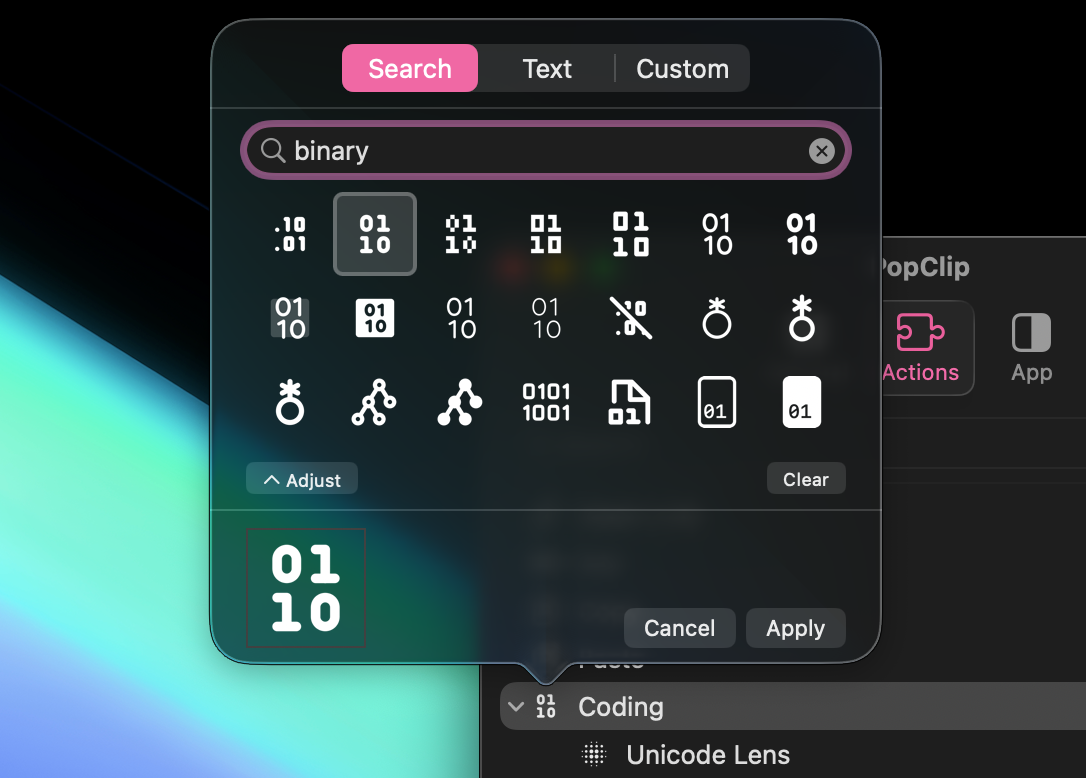
To give an action or folder a different icon, choose Icon → Change Icon… from the right-click menu. The icon picker offers three ways to make an icon:
- Search: search the open-source Iconify icon library.
- Text: create an icon from a word or a character, with shape and style options.
- Custom: use a custom icon specifier. To supply your own SVG or PNG image file — click Choose SVG or PNG…, or drag a file into the box.
To go back to the original icon, choose Icon → Reset to Default Icon.
Folders
To create a folder, click the + button in the toolbar and choose New Folder (⌘N).
You can change the icon and name of a folder, just like you can with an action.
Folders appear in the PopClip bar as a button that opens a submenu of the actions inside. Folders can be nested inside other folders.
Separators
To create a separator, click the + button in the toolbar and choose New Separator (⌥⌘N).
A separator has two styles, chosen from its right-click menu:
- Section Break: a visual gap between groups of actions in the bar.
- Page Break: forces the following actions onto the next page of the bar, so you can control exactly where the bar splits.
Show as icon or text
Each action button in the PopClip bar can be displayed as an icon or as a text title. Most actions default to showing the icon but some (like Cut, Copy and Paste) default to text. You can override this per action with the Show As command in the right-click menu.
Duplicating actions
Choose Duplicate from the right-click menu to create a copy of an action, with its own name, icon, settings and position in the bar.
This is useful when you want the same extension configured in two or more different ways, for example:
- Search actions for several different websites,
- an AI extension with several different prompts,
- a translation extension with different target languages, or
- the Bitly extension with two different accounts (e.g. work and personal).
Each copy is a separate instance with its own settings. (See also Extensions and actions.)
Deleting actions
To remove an action from the list, choose Delete from the right-click menu (or press the Delete key). This also works for PopClip's built-in actions.
Deleting all of an extension's actions also uninstalls the extension itself — to get it back, reinstall the extension. Built-in extensions are the exception: they are never uninstalled, so you can bring back a deleted built-in action from the Manage Extensions sheet at any time.