Appearance
Built-in Actions
The buttons that appear in the PopClip bar perform actions. PopClip comes with a set of built-in actions, and you can add more by installing extensions.
🤔 Missing actions?
Actions are context-sensitive, and only appear when relevant. So you won't always see all the actions in the PopClip bar. See: Why are some actions not appearing?
Make them your own
You can rearrange, rename, restyle and even delete any of the actions, including the built-in ones. See Organizing Actions.


 Cut, Copy and Paste
The Cut, Copy and Paste actions work just like the usual clipboard functions on your Mac.
Paste without selecting text
To make PopClip appear without selecting any text, long press the mouse or trackpad button.
Availablilty:
- Copy: requires a text selection.
- Paste: requires text on the clipboard and an editable text field.
- Cut: requires a text selection and an editable text field.
Modifiers:
Hold Shift (⇧) to perform the action with plain text only. This will remove any formatting from the text.
Settings:
None. (To show these actions as icons instead of text, use the Show As command — see Organizing Actions.)
 Search
The Search action opens a web search for the selected text. The default search engine is Google. You can change the search engine in the action's settings.
Searches open in the current app if it is a known browser, or else in the system default browser.
Availability:
Always available, subject to a maximum length limit.
Modifiers:
Hold Shift (⇧) to open the search in a background tab, in supported browsers.
Hold Option (⌥) to search for the exact phrase by wraping the search text in double quotes.
Settings:
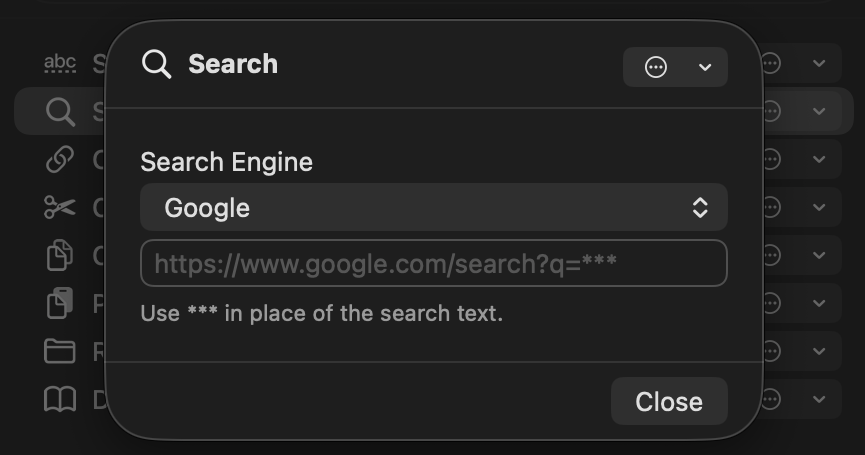
- Search Engine: Choose the website to search, either:
- choose from a list of preset search engines (Baidu, Bing, Brave, DuckDuckGo, Ecosia, Google, Kagi, NAVER, Startpage, Yahoo, Yahoo Japan and Yandex); or
- choose Other… to enter a custom search URL. In a custom URL, the placeholder
***will be replaced with the selected text — for example,https://www.google.com/search?q=***.
Multiple search engines
To have several search actions for different engines, duplicate the Search action — see Duplicating actions.
 Open Link
The Open Link action opens any web URLs (http: and https:) detected in the selected text. If the text contains multiple web URLs, all of them will open in separate tabs. The action will also detect "URL-like" text lacking a scheme prefix and add https: when opening it.
URLs open in the current app if it is a known browser, or else in the system default browser.
In addition to web URLs, PopClip detects single instances of the following URL schemes: bluesky:, craftdocs:, evernote:, ftp:, hook:, message:, omnifocus:, spotify:, x-devonthink-item.
Try it: https://apple.com xkcd.comspotify:track:421Gp1eSmOIcD6alTWowFR
Availability:
Only available if the selected text contains URL. The URL must appear in the text itself; links that are behind hyperlinks cannot be detected.
Modifiers:
Hold Shift (⇧) to open the URLs in a background tab, in supported browsers.
Hold Option (⌥) to copy the URLs to the clipboard as a list, instead of opening them.
Settings:
None.
 Dictionary
The Dictionary action looks up the selected text in the macOS Dictionary app. The Dictionary app will open and show the definition of the word.
Availability:
Only available if the selected text is a word in one of the dictionaries enabled within the macOS Dictionary app. (PopClip restart may be needed after enabling new dictionaries.)
Modifiers:
Hold Shift (⇧) to copy the dictionary definition to the clipboard instead of opening in the Dictionary app.
Settings:
The action has no settings, but you can change the dictionaries that are enabled in the settings of macOS Dictionary app.
 Reveal in Finder
The Reveal in Finder action opens the folder containing the selected file path, or, if the selected text is a folder path, opens the folder itself.
Try it: ~/Documents /Applications/
Availability:
Only available if the selected text is a file or folder path.
Modifiers:
None.
Settings:
None.
 Spelling
The Spelling action shows a list of spelling suggestions for the selected word. Click a suggestion to replace the selected text with it.
Spelling may be checked against up to two different languages, configurable in settings.
This action has a special behaviour, appearing as a submenu in place of the regular PopClip bar. You can click the up-arrow button to return to the regular PopClip bar.
The action uses the macOS system spellchecker behind the scenes, so the spelling suggestions will be similar those that appear in other places in macOS.
Availability:
Available if the selected text is:
- a single word,
- misspelled in at least one of the enabled languages,
- the spellchecker has spelling suggestions, and
- the text is editable.
If the selected text is a valid word in one of the enabled languages, the action will appear in the regular PopClip bar only. Otherwise, the spelling suggestions submenu will appear directly.
Modifiers:
Hold Shift (⇧) to copy the spelling suggestion to the clipboard instead of replacing the text.
Settings:
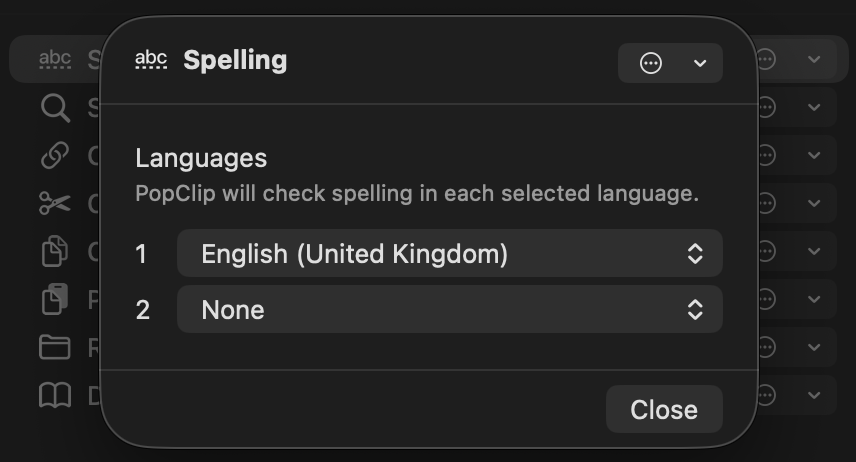
- Languages: You can select up to two languages for spellchecking, choosing from any that are available on the operating system. If you only want to check spelling in one language, leave the second language set to "None".