
Appearance
One Page Docs
This is the entire Developer Docs on a single page. It is also available in plain Markdown format at /dev/all.md, along with the other formats listed in /llms.txt.
🤖 PopClip Extensions Developer Documentation
Standalone page: /dev/
This section of the website provides a detailed specification of PopClip's extension system. With this information, you can create your own extensions.
Getting help
If you have any questions about the specification or need help with developing an extension, I encourage you to post to the PopClip Forum. I frequently check the forum and will be happy to help you there.
Markdown for LLMs
Every page here has a plain Markdown twin — add .md to its URL. The whole reference is in one file at /dev/all.md; see also /llms.txt.
Extensions Overview
Snippets and Packages
A PopClip extension can be either a snippet or a package. The following table summarizes the differences:
| Snippet | Package | |
|---|---|---|
| What is it? | Plain text in YAML format. | A folder containing a config file plus other files such as icons, source files, and a readme file. |
| Install method | PopClip can load it directly from a text selection. | Double-clicking it will open it in PopClip. |
| Distribution | Can be copied and pasted as text, e.g. on forums, pastebins, etc. | Can be downloaded as a file. |
| Signing | Not signed. | Can be signed. |
| Advantages | Easy to create and informally share. No need for separate files. | Easy for end user to install. Allows modular source code with complex functionality. |
| Disadvantages | Limited to what can be done with a single text file. | More complex to create. Steeper learning curve. |
| File extensions | None (direct selection).popcliptxt (text file) | .popclipext (folder).popclipextz (zipped folder) |
Types of actions
An extension defines one or more actions. Each action can be one of seven types. Three are script types, which run code that you provide:
| Action Type | Description |
|---|---|
| JavaScript | Run a JavaScript or TypeScript script. |
| AppleScript | Run an AppleScript script. |
| Shell Script | Run a shell script. |
JavaScript is the recommended script type. JavaScript actions have full access to PopClip's JavaScript environment, and a module-based extension can define everything it does in JavaScript or TypeScript. Use the AppleScript and Shell Script types only when the job can't be done with JavaScript alone.
The other four types are ready-made conveniences for performing common tasks, with no code needed:
| Action Type | Description |
|---|---|
| URL | Open a URL, with the selected text inserted as a query. |
| Key Press | Press a key combination. |
| Service | Send the selected text to a macOS Service. |
| Shortcut | Send the selected text to a macOS Shortcut. |
Extension signing
Please be aware that PopClip extensions can contain arbitrary executable code. Be careful about the extensions you create, and be wary about loading extensions you get from elsewhere.
PopClip extension packages published in the directory are digitally signed. PopClip will install signed extensions without showing any warning to the user.
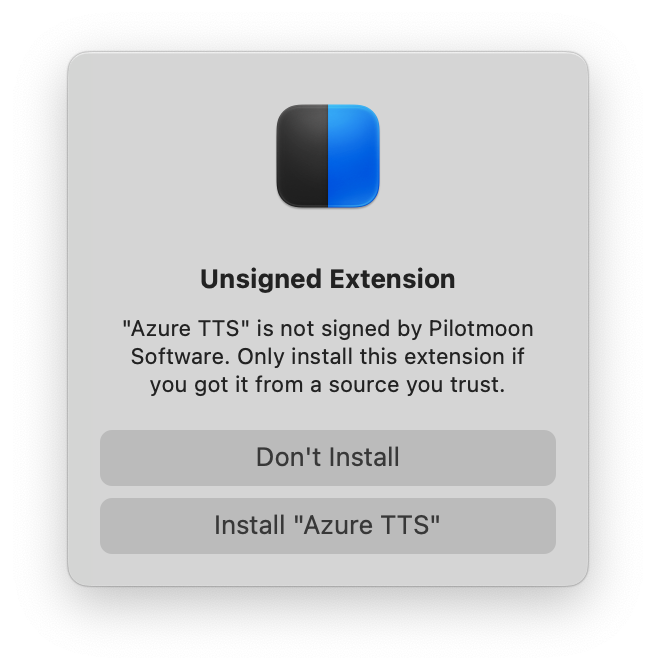
If you create your own extension, it will be unsigned. If an unsigned extension contains Shell Script actions or AppleScript actions, or has entitlements, PopClip will display a warning dialog when you try to install it:
Development environment
You can create extensions using any text editor. The macOS-included app TextEdit will suffice for simple snippets, but otherwise, I recommend using a dedicated code editor such as VS Code, Sublime Text, BBEdit, or Nova.
Type definitions
The complete TypeScript definitions for PopClip's JavaScript API are published as a single file:
As well as the popclip object and other globals available to scripts, this file describes the extension config format itself — see the ActionProperties, Extension, Option and Requirement types. Point your editor at it for autocomplete and type checking, or give it to an AI coding assistant as a complete reference for writing extensions.
The same definitions are available as the @popclip/types npm package, and browsable as HTML in the JavaScript API Reference.
Turn off unsigned warning
If the unsigned extension warning gets annoying while you test your work, you can turn it off. Run the following command at the Terminal, then Quit and restart PopClip:
defaults write com.pilotmoon.popclip LoadUnsignedExtensions -bool YES
And if you are working on fixing an extension with the com.pilotmoon. identifier prefix:
defaults write com.pilotmoon.popclip AllowUnsignedReservedPrefixes -bool YES
Debug output
To help you when creating extensions, PopClip can send script outputs and other debug info to the Console app. To enable it, run this command in Terminal, then Quit and restart PopClip:
defaults write com.pilotmoon.popclip EnableExtensionDebug -bool YES
You can then view the debug output in the Console app.
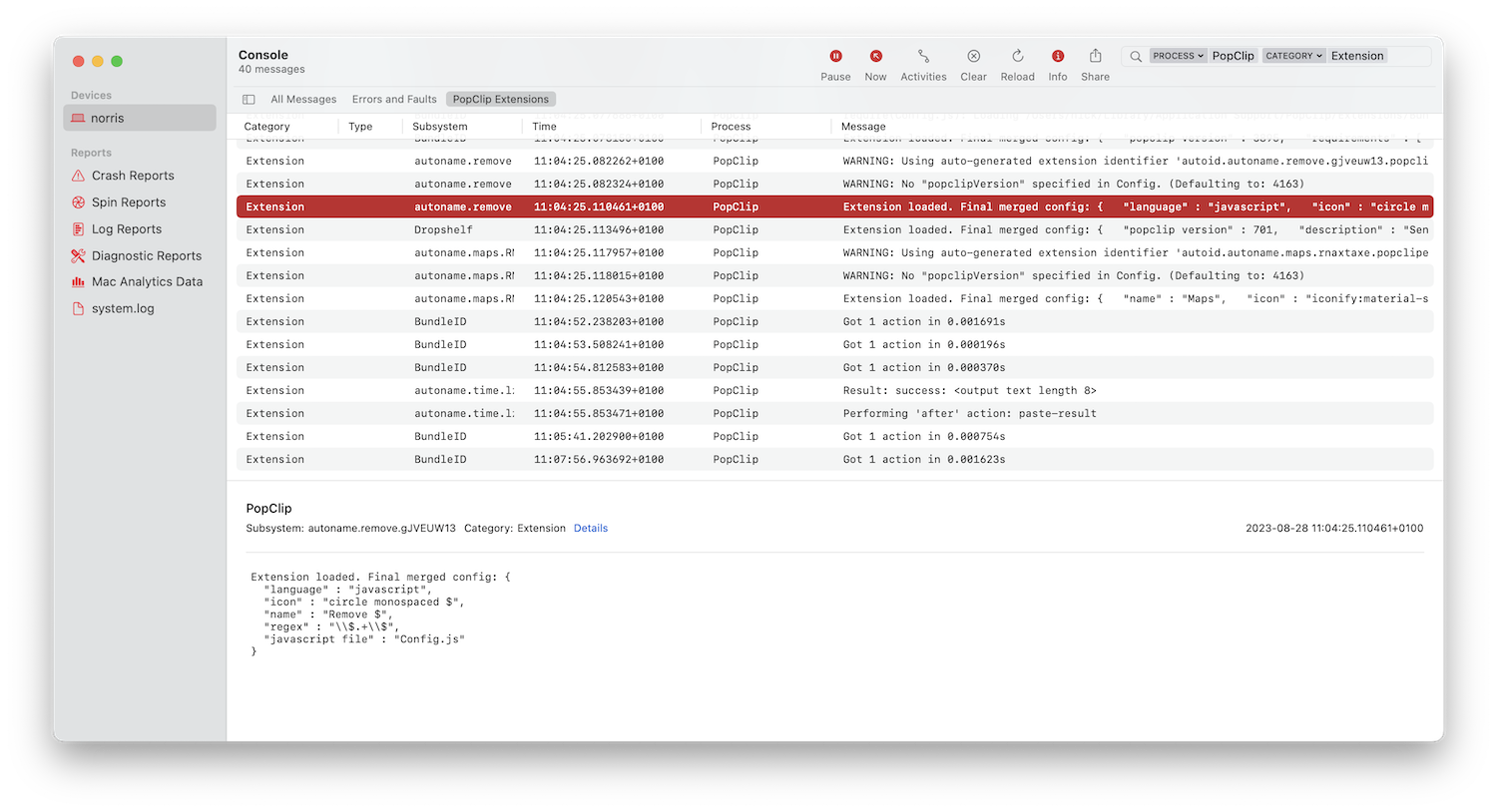
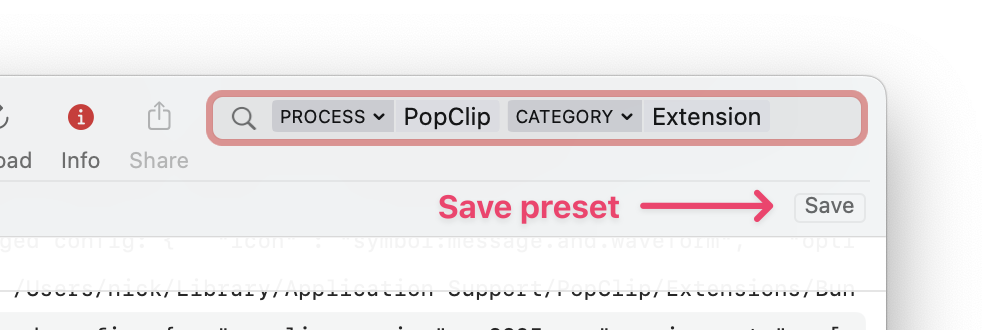
To filter the Console to show just PopClip extensions, enter Process "PopClip" and Category "Extension" in the Search field.
You can add this as a saved search by clicking the Save button in the toolbar:
Show off your work
If you create an extension that others might find useful, you are welcome to submit it for publication in the PopClip Extensions Directory. See Submit an Extension for how it works.
Snippets
Standalone page: /dev/snippets
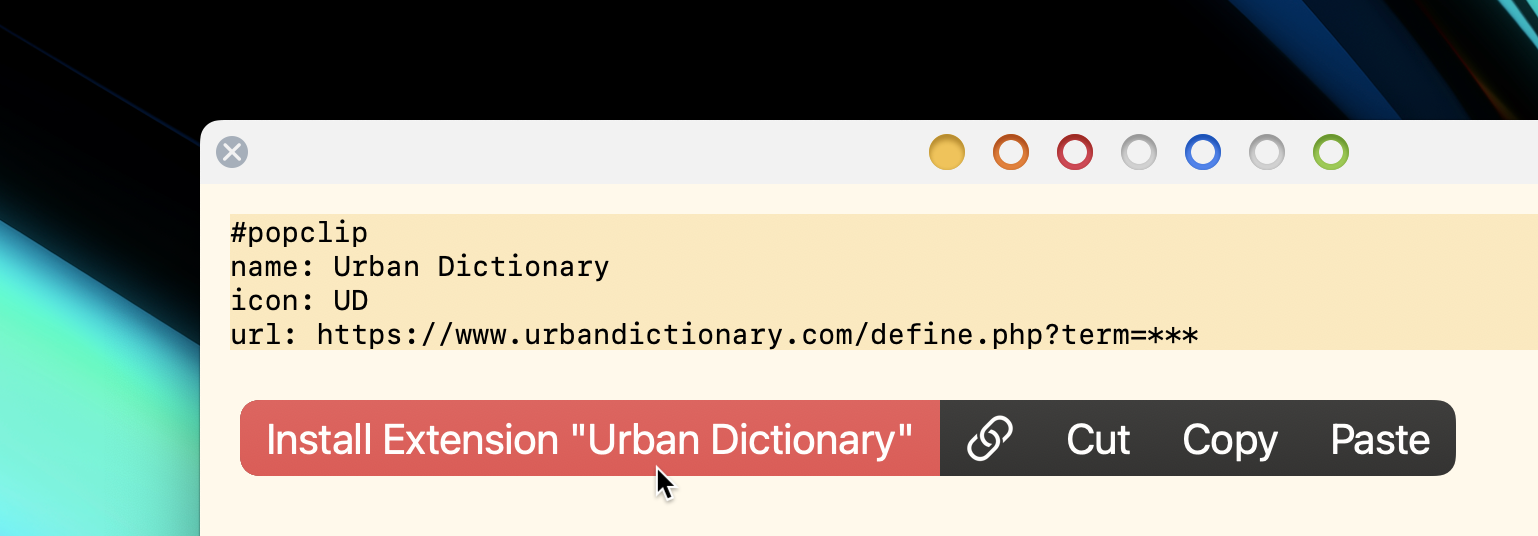
A snippet is the simplest kind of PopClip extension, because it is just plain text. PopClip can load a snippet directly from a text selection, without the need for separate files or folders.
Example
It is easiest to start with an example:
yaml
#popclip
name: Urban Dictionary
icon: UD
url: https://www.urbandictionary.com/define.php?term=***
When you select whole block of text above, PopClip will detect the snippet and offer an "Install Extension" action.
Format
A snippet always begins with #popclip (or # popclip) and can be up to 5000 characters long. It is parsed as YAML 1.2. The body of the snippet defines the extension's config dictionary.
Commments in snippets
Note that # begins a YAML comment. Thus the entire snippet including the #popclip line parses as valid YAML.
Creating snippets
PopClip will display any errors it encounters while trying to load the snippet in the PopClip bar itself.
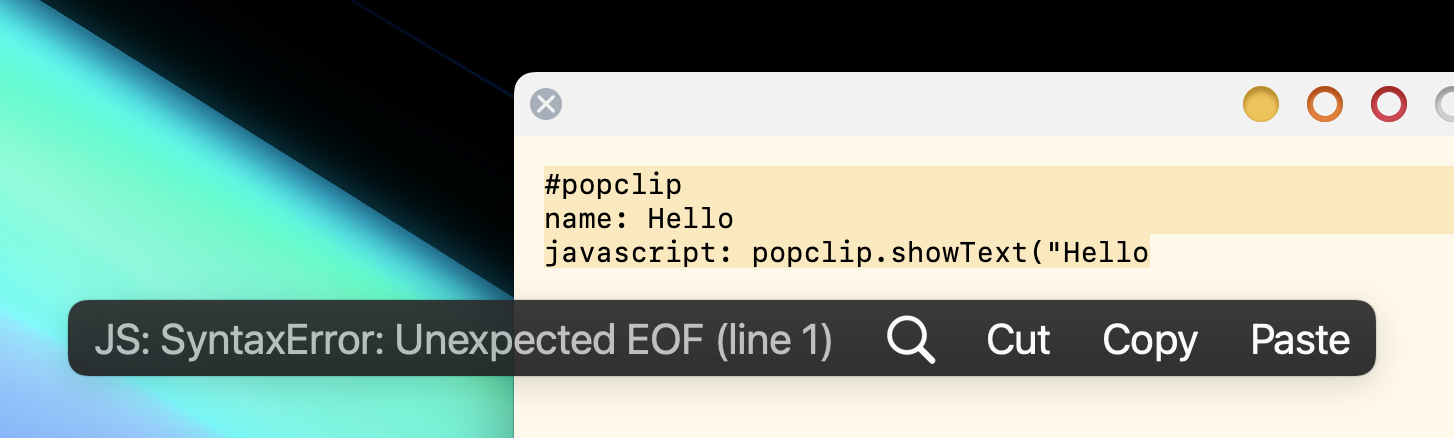
In the absence of an identifier field, the name acts as the identifier for the extension. Installing a snippet with the same name as an existing snippet will replace it.
A snippet can do everything that a package extension can do. The only limitation is that it can't refer to any external files.
More examples
A Shortcuts example:
yaml
# popclip shortcuts example
name: Run My Shortcut
icon: symbol:moon.stars # Apple SF Symbols
macos version: '12.0' # shortcuts only work on Monterey and above!
shortcut name: My Shortcut Name
A Service example (this time using flow-style YAML markup, with braces):
yaml
#popclip service example
{ name: Stickies, service name: Make Sticky }
A Key Press example:
yaml
#popclip key press example
name: Key Press Example
key combo: command option J
An shell script example:
yaml
#popclip shellscript example
name: Say
interpreter: zsh
shell script: say -v Daniel $POPCLIP_TEXT
A JavaScript example, including multiple actions:
yaml
#popclip js + multi action example
name: Markdown Formatting
requirements: [text, paste]
actions:
- title: Markdown Bold # note: actions have a `title`, not a `name`
  icon: circle filled B
  javascript: popclip.pasteText('**' + popclip.input.text + '**')
- title: Markdown Italic
  icon: circle filled I
  javascript: popclip.pasteText('*' + popclip.input.text + '*')
json
#popclip js + multi action example
{
  "name": "Markdown Formatting",
  "requirements": [
    "text",
    "paste"
  ],
  "actions": [
    {
      "title": "Markdown Bold",
      "icon": "circle filled B",
      "javascript": "popclip.pasteText('**' + popclip.input.text + '**')"
    },
    {
      "title": "Markdown Italic",
      "icon": "circle filled I",
      "javascript": "popclip.pasteText('*' + popclip.input.text + '*')"
    }
  ]
}
#1 rule of YAML: Do not indent with tabs!
When writing snippets in YAML with indented parts, as in the example above, do not use tabs for indenting. YAML does not allow it — use spaces instead.
Inverted syntax
PopClip also supports an "inside out" snippet syntax, which looks like this:
javascript
// #popclip
// name: Hello JS
// icon: Hi!
// language: javascript
const greeting = "Hello " + popclip.input.text;
popclip.showText(greeting);
This method, which I call inverted syntax, offers several benefits: we get code syntax highlighting and autocomplete from our text editor, and we don't have to indent the script awkwardly in the YAML.
The inverted syntax is supported for JavaScript, AppleScript and shell script actions.
When using the inverted syntax, the whole text of the snippet becomes the javascript file, module, applescript file or shell script file for the extension. The config header should be added using the appropriate comment style for the source language (see examples below).
When to use inverted syntax?
Inverted syntax is most useful when the script is multiple lines long, or when you want to take advantage of the language syntax highlighting and autocomplete features of your text editor.
Inverted syntax config
When using the inverted syntax, the whole snippet text will be interpreted as if it was a file specified in the root of the config, as follows:
| To intepret as... | Include these fields... |
|---|---|
shell script file | Specify interpreter string. |
applescript file | Specify language: applescript. |
javascript file | Specify language: javascript or language: typescript and omit module field. |
module | Specify language: javascript or language: typescript with module: true. |
Inverted syntax examples
Here is a Python example:
python
# #popclip
# { name: Hello Python, icon: hi, after: show-result, interpreter: python3 }
import os
print('Hello, ' + os.environ['POPCLIP_TEXT'] + '!', end='')
An alternative way to specify a shell script's interpreter is to put a shebang (#!) line at the top, in which case, the interpreter field is not needed:
python
#!/usr/bin/env python3
# #popclip
# { name: Hello Python 2, icon: hi, after: show-result }
import os
print('Hello again, ' + os.environ['POPCLIP_TEXT'] + '!', end='')
An AppleScript example:
applescript
-- # PopClip LaunchBar example
-- { name: LaunchBar, icon: LB, language: applescript }
tell application "LaunchBar"
  set selection to "{popclip text}"
end tell
.popcliptxt files
You can save a snippet to a plain text file with a .popcliptxt extension. When you double-click such a file in Finder, PopClip will load the snippet from the file and install it. There is no size limit on the snippet when installed by this method.
Further examples
There are lots of snippet examples posted in the PopClip Forum. Here are a few interesting ones that demonstrate various techniques:
- Markdown highlighting
- A PopClip Extension for ChatGPT
- Text-to-speech with Azure API
- Search DuchDuckGo in DuckDuckGo Browser
- S p a c e d w o r d s
Packages
Standalone page: /dev/packages
A PopClip extension package bundles together all the files needed for an extension in a folder.
The package folder
A PopClip extension package consists of a config file plus (optional) additional files such as icons and scripts, all contained in a directory whose name ends with .popclipext.
When you double-click a .popclipext package, macOS will open it with PopClip, which will attempt to load and install it.
Viewing package contents
macOS treats .popclipextdirectories as packages. To view the contents of a package, right-click it in Finder and choose Show Package Contents.
Here is an example package structure, the Say extension:
Say.popclipext/                -- Package folder
│
├── Config.json                -- Config file
├── README.md                  -- Readme file
├── say.zsh                    -- Script file
└── speechicon.png             -- Icon file
Zipped .popclipextz files
For distribution, an extension package folder may be zipped and renamed with the extension .popclipextz. You can examine an existing PopClip extension by renaming it with a .zip extension and unzipping it, to reveal a .popclipext package.
The Config file
Every package must include a config dictionary. PopClip will try looking in the root of the package directory for a file with base name Config (case sensitive). The file is interpreted according to its extension:
| File Name | Format | Interpretation |
|---|---|---|
Config.plist | Plist | An Apple XML Property List file. |
Config.json | JSON | A JSON file. |
Config.yaml | YAML | A YAML 1.2 file. |
Config.js, Config.ts | JavaScript, TypeScript | JavaScript or TypeScript module. |
Config.<anything else> or just Config | Snippet | Interpreted as snippet. |
Historical note
Plist was the original format for PopClip extensions, and many of the older extensions in pilotmoon/PopClip-Extensions are in Plist format. I recommend avoiding Plist for new extensions, as it is verbose and harder to read and edit than JSON or YAML.
Other files
Apart from the config file, an extension package may contain any number of other files. You are free to name these however you like, except for the reserved names Config[.*] and _Signature.plist. You can also use subfolders to organise your files.
Examples
For a whole bunch of example extension packages, see pilotmoon/PopClip-Extensions/.../source.
Config
Standalone page: /dev/config
Every extension is defined by a configuration dictionary. This can be provided either by a snippet or a package, but in each case the underlying structure is the same.
Key names
PopClip is very flexible about how you name keys. In this documentation you'll mostly see keys named in lowercase with spaces, for example key name. However, PopClip will treat Key Name, keyName, KeyName, key_name, key-name and KEY_NAME as equivalents.
I tend to use key name in YAML, and keyName in JSON, but you can use whatever you prefer.
Example
Before diving in to the details, let's look at an example config dictionary for a published extension. This is based on the Yoink extension:
json
{
  "identifier": "at.EternalStorms.Yoink.PopClipExtension",
  "popclipVersion": 3785,
  "name": "Yoink",
  "icon": "yoink.png",
  "app": {
    "name": "Yoink",
    "link": "https://eternalstorms.at/yoink/mac",
    "checkInstalled": true,
    "bundleIdentifiers": [
      "at.EternalStorms.Yoink",
      "at.EternalStorms.Yoink-setapp",
      "at.EternalStorms.Yoink-demo"
    ]
  },
  "serviceName": "Add Selected Text to Yoink",
  "captureHtml": true,
  "description": "Add the selected text to Yoink."
}
yaml
identifier: at.EternalStorms.Yoink.PopClipExtension
popclip version: 3785
name: Yoink
icon: yoink.png
app:
  name: Yoink
  link: https://eternalstorms.at/yoink/mac
  check installed: true
  bundle identifiers:
    - at.EternalStorms.Yoink
    - at.EternalStorms.Yoink-setapp
    - at.EternalStorms.Yoink-demo
service name: Add Selected Text to Yoink
capture html: true
description: Add the selected text to Yoink.
Not all of those fields are strictly needed. As we have already seen in Snippets, we can also express a similar extension very minimally, at the loss of some of the niceties that the fleshed-out version provides:
json
{
  "name": "Yoink",
  "serviceName": "Add Selected Text to Yoink"
}
yaml
name: Yoink
service name: Add Selected Text to Yoink
Minimal or maximal?
In general, if you're writing an extension for your own use, you can freely omit any fields that you don't need. But if you're preparing an extension for publication, you should flesh out the config as much as possible, to provide the best user experience for your extension.
Top level properties
The following keys are used at the top level of the config to define properties of the extension itself. All properties are optional except name.
| Key | Type | Description |
|---|---|---|
name (Required) | String (Localizable) | A short, human-readable display name for this extension. |
icon | String | See Icons. If you omit this field, the icon for the first action will be used (if any), or else no icon will be displayed. |
identifier | String | You may provide a string to uniquely identify this extension. See The identifier field. |
description | String (Localizable) | A short, human readable description of this extension. Appears in the directory but not in the app. |
keywords | String | Space-separated words to help people find your extension in the directory, whose search matches case-insensitively against the name and keywords but not the description. |
macos version | String | Minimum version number of Mac OS X needed by this extension. For example 10.8.2 or 11.0. |
popclip version | Integer | Minimum PopClip version required. This is the integer build number e.g. 4151. Specifying the current PopClip version here can help preserve your extension's functionality in future, because PopClip applies backward-compatibility rules for old extensions. |
options | Array | Array of dictionaries defining the options for this extension, if any. See The options array. |
entitlements | Array | Only applies to JavaScript extensions. The possible values are network (allows use of XMLHttpRequest), dynamic (allows dynamically generated actions) and script (allows use of popclip.runAppleScript() and popclip.runAppleScriptFile()). |
action or actions | Dictionary or Array | A dictionary or array of dictionaries defining the action(s) for this extension. See Actions. |
submenu | Array | Makes the extension a single button that opens a submenu of child actions. See Submenus. |
show as | String | Sets the default presentation of the extension's actions in the PopClip bar: icon or text. If omitted, the default is icon. (The user can override this per action.) |
auth service label | String (Localizable) | For extensions with a sign-in (auth function): a label identifying the service to which the user is being asked to sign in. Used in UI prompts like Sign in to your [label] account. If omitted, the extension name is used. |
offers multiple instances | Boolean | Controls whether PopClip enables the Duplicate and New Instance commands for this extension. By default, PopClip allows multiple instances if the action has any options. Setting this property will override the automatic behavior. |
shell script rationale | String | A brief explanation of why the extension needs a Shell Script action instead of JavaScript. Not used by the app; required when submitting an extension with a Shell Script action to the directory. |
The identifier field
An identifier may contain only alphanumeric characters (A-Z, a-z, 0-9), period (.), and hyphen (-).
A good identifier should be globally unique so as not to clash with other creators. Use your own prefix, which could be a reverse DNS-style prefix based on a domain name you control, such as com.example.myextension. Alternatively, just pick something likely to be unique to you.
If you don't provide an identifier, PopClip will identify the extension by the package directory name (e.g. Name.popclipext) if it's a package extension, or the name if it's a snippet.
Reserved identifier
The identifier prefix com.pilotmoon. is reserved for signed extensions published by me. If you try to use it for your own extensions, you'll get an error.
The options array
Options are presented to the user in a preferences user interface window and are saved in PopClip's preferences on behalf of the extension. Options appear in the UI in the order they appear in the options array. An option dictionary has the following structure.
| Key | Type | Required? | Description |
|---|---|---|---|
identifier | String | Required | Identifying string for this option. This is passed to your script. The identifier will be downcased or upcased for AppleScript and Shell Script targets, respectively — see Script variables. |
type | String | Required | See Option types. |
label | String (Localizable) | Optional | The label to appear in the UI for this option. If omitted, the identifier is displayed. |
description | String (Localizable) | Optional | A longer description to appear in the UI to explain this option. May contain clickable links, written either as bare URLs or in Markdown syntax: [label](https://example.com). |
default value | String | Optional | This field specifies the default value of the option. If omitted, string options default to the empty string, boolean options default to true, and multiple options default to the top item in the list. A secret field may not have a default value. |
values | Array | Required for multiple type | Array of strings representing the possible values for the multiple choice option. |
value labels | Array | Optional | Array of "human friendly" strings corresponding to the multiple choice values. This is used only in the PopClip options UI, and is not passed to the script. If omitted, the option values themselves are shown. |
inset | Boolean | Optional | If true, the option field will be shown inset to the right of the label, instead of under it. Default is false. |
icon | String | Optional | For boolean options only. Specify an icon to appear next to the check box. |
multiline | Boolean | Optional | For string options only. If true, shows a multi-line text field instead of a single-line one. Useful for longer inputs such as prompts. Default is false. |
allow other | Boolean | Optional | For multiple options only. If true, adds an "Other…" choice to the list, allowing the user to enter a free-text value. Default is false. |
allow none | Boolean | Optional | For multiple options only. If true, adds a "None" choice to the list, whose value is the empty string. Default is false. |
Option types
The type field of an option dictionary can be one of the following:
| Type | Description |
|---|---|
string | A text field. |
boolean | A checkbox. |
multiple | A multiple choice list. An array of values strings must be provided. |
secret | Concealed text entry. The value is persisted in the keychain. |
heading | Shows as a text heading in the settings user interface. Carries no value. |
Config notes
Localized strings
Fields shown as "String (Localizable)" type may be either a string or a dictionary. If you supply a string, that string is always used. Alternatively, you can supply a dictionary mapping language codes to strings, and PopClip will display the string for the user's preferred language if possible, with fallback to the en string, which is always required.
The following language codes are supported:
Language codes table
| Language Code | Language Name |
|---|---|
en | English |
en-gb | English (UK) |
da | Danish |
de | German |
es | Spanish |
fr | French |
it | Italian |
ja | Japanese |
ko | Korean |
nl | Dutch |
pl | Polish |
pt-br | Portuguese (BR) |
ru | Russian |
sk | Slovak |
tr | Turkish |
vi | Vietnamese |
zh-hans | Chinese (Simplified) |
zh-hant | Chinese (Traditional) |
Example of localized string
yaml
name:
  en: My Extension
  fr: Mon Extension
  zh-hans: 我的扩展
Null values in Plist
Plist does not have a native way to represent the null value of JSON and YAML. Use <false /> in a Plist where you would use null in JSON or YAML.
Key name mapping
Some field names were different in older versions of PopClip. Others have alternative allowable spellings.
To preserve backwards compatibility, key names in the config are transformed as follows:
First, the naming convention is standardized to lowercase with spaces. For example,
RequiredAppsbecomesrequired apps.Then, if the field name has the prefix
extensionoroption(which were expected by older versions of PopClip), it is removed.Finally, PopClip applies the following mapping:
Key name mapping table
| Alternative name | Canonical name |
|---|---|
| apple script | applescript |
| apple script call | applescript call |
| apple script file | applescript file |
| blocked apps | excluded apps |
| flip horizontal | flip x |
| flip vertical | flip y |
| id | identifier |
| image file | icon |
| java script | javascript |
| java script file | javascript file |
| js | javascript |
| lang | language |
| mac os version | macos version |
| params | parameters |
| pass html | capture html |
| pop clip version | popclip version |
| preserve image color | preserve color |
| regular expression | regex |
| required os version | macos version |
| required software version | popclip version |
| script interpreter | interpreter |
Example
An old extension uses the key Extension Image File to define its icon. PopClip will first standardize the case to extension image file. Then it will remove the extension prefix, leaving image file. Then it will map this to icon.
Icons
Standalone page: /dev/icons
Icons are specified by using a text string to describe an icon.
(An interactive icon preview tool is available in the online version of this page.)
An icon specifier string describes an icon using a simple text-based format. The string consists of a series of space-separated keywords, with the final keyword specifying the base icon (see Base icon formats), and the preceding keywords (if any) specifying modifiers (see Icon modifiers).
Here are some examples:
| Specifier string | Icon generated | Notes |
|---|---|---|
T | Here, T specifies the base icon as a text icon. | |
square T | Here, square is a modifier that encloses the base icon in a square. | |
square filled T | Combining two modifiers; filled specifies that the square is a solid shape. | |
circle filled T | Here we use a non-Ascii character as the base icon. The circle modifier encloses the base icon in a circle. | |
search filled T | The search modifier encloses the base icon in a magnifying glass shape. | |
iconify:mdi:home | Here, the base icon is an Iconify icon. | |
square filled iconify:mdi:home | We put the home icon in a filled square. | |
strike iconify:mdi:home | The strike modifier draws a strike-through line over the base icon. | |
symbol:hand.raised | Here, the base icon as an SF Symbols icon. | |
flip-x symbol:hand.raised | The flip-x modifier flips the base icon horizontally. |
Base icon formats
File icons
File icons can only be used in packages. The icon is specified as a path to a .png or .svg image file in the package.
json
{
  "icon": "icon.png"
}
A good icon will feature a monochrome shape on a transparent background. Variable opacity can be used for shading. PNG icons should be at least 256 pixels high.
File icons with modifiers
File icons can be used with modifiers by adding the prefix file:, for example:
{
  "icon": "strike file:icon.png"
}
Text icons
Text icons can include up to 3 characters and are specified as the text itself. The prefix text: can optionally be used.
json
{
  "icon": "T"
}
Text icons are drawn using the system font. Adding the monospaced modifier will draw the icon in a monospaced variant.
If the text icon is a single emoji without modifiers, it rendered in color.
Examples:
| Specifier string | Icon generated |
|---|---|
ABC (or text:ABC) | |
@ | |
本 | |
() | |
monospaced () | |
😵💫 |
💡 Tip: Monospaced font
Punctuation symbols often look better in icons when drawn with the monospaced modifier.
Iconify icons
Iconify provides access to over 200,000 icons from a variety of open-source icon sets, using a unified naming system.
The Iconify website provides a catalog of available icons.
The format is iconify:<icon set prefix>:<icon name>.
Some Iconify icons contain color information. These are automatically recognized by PopClip and will be rendered in color.
Examples:
| Specifier string | Icon generated |
|---|---|
iconify:ion:fish | |
iconify:solar:flag-bold | |
iconify:logos:spotify-icon |
SF Symbols icons
Apple SF Symbols are available on macOS 11.0 and above. (Symbol availability may vary by macOS version). The icon catalog can be viewed by installing Apple's SF Symbols app on your Mac.
The format is symbol:<symbol name>.
Symbols are always drawn in the monochrome variant.
Examples:
| Specifier string | Icon generated |
|---|---|
symbol:flame | |
symbol:hand.raised | |
symbol:signpost.right |
SVG Icons
The icon string can supply SVG source code for an icon. The format is svg:<svg string>.
Example
svg:<svg xmlns="http://www.w3.org/2000/svg" width="1em" height="1em" viewBox="0 0 24 24"><path fill="currentColor" d="m6 10.95l-1.875 1.025l-2.975-5.2L7.75 3H10v1q0 .825.588 1.413T12 6q.825 0 1.413-.587T14 4V3h2.25l6.6 3.775l-2.95 5.15l-1.9-.95V21H6z"/></svg>
generates:
Data icons
The icon string can include raw image data as a data URL.
The format is: data:<mediatype>[;base64],<data>, where <mediatype> may be either image/svg+xml or image/png.
SVG Example
Specifier string:
data:image/svg+xml,%3Csvg%20xmlns%3D%22http%3A%2F%2Fwww.w3.org%2F2000%2Fsvg%22%20width%3D%2224%22%20height%3D%2224%22%20viewBox%3D%220%200%2024%2024%22%3E%3Cpath%20fill%3D%22currentColor%22%20d%3D%22M5.5%2015v-4.5H4V9h3v6H5.5ZM9%2015v-2.5q0-.425.288-.713T10%2011.5h2v-1H9V9h3.5q.425%200%20.713.288T13.5%2010v1.5q0%20.425-.288.713t-.712.287h-2v1h3V15H9Zm6%200v-1.5h3v-1h-2v-1h2v-1h-3V9h3.5q.425%200%20.713.288T19.5%2010v4q0%20.425-.288.713T18.5%2015H15Z%22%2F%3E%3C%2Fsvg%3E
generates:
PNG Example
Specifier string:
data:image/png;base64,iVBORw0KGgoAAAANSUhEUgAAAQAAAAEABAMAAACuXLVVAAAABGdBTUEAALGPC/xhBQAAAAFzUkdCAK7OHOkAAAAJcEhZcwAAFiUAABYlAUlSJPAAAAAwUExURUdwTAAAAAAAAAAAAAAAAAAAAAAAAAAAAAAAAAAAAAAAAAAAAAAAAAAAAAAAAAAAACVM9DkAAAAPdFJOUwDcIDTLUFYGEqLpZfaDQdxVBh4AAAIbSURBVHja7doxS0JRGMZxuVI6BUG4GBhtDoHQkmPQViSBtAsVjS66CNIuLrWF0CcIaalojsAhXEMaGoJwvOCiCbfR9w5dXI6P4v/3Be4D5/C87xFjMQAAAAAAAAAAAAAAAAAAAADAIknsTmvPTYD4/vqUUmUnASrBtH6vCEAAAhCAAARY9gBv6nF87WYhqR9E2DTfH/y4CeCdRrg1AdJurkD0utaafH/8IVhYd9qTAMOt2X8/+WBO4Lg8+wCVwuT7/rPgBPrdSYB3wRX0eu5LIFIz474EIt9sZ+ISWLsTl0C2Ky6BnrgEquoS+A60JWDnkKYE2uISsHMoJTiBekFcAnlxCXjqEmiYOeRfCq5gcdlLwC6jr4ISCC2jKcEVrMxTCQwUJWCv4KHgBOwyOhKcQGgZ7eQEy2jB1rB4GR08iZfRe0EN12wJ3IiX0cGXeA4pSsDOIUUJhOZQR1DDdXUJ5MUl4KlLwC6jY8EullBfwZWC+Dlgr6C/jFewJr6CsWKg/U0gNIfSijnUFc+hF3EJrKpLoK8ugZa4BOzvcpISKIlLwDsSl0BTXAKJkrgE4uoSyIpLIPkpLoGquAQS9kWq+GHQYxOYoxfpWPIcCMSbgLoEGuoSOBGXQGgODR8v/nXu6HTsHArGEX/t3si5L4FIIzcBKhlxgGYgDpAlAAEIQAACEGBxAviOFpLtqQleDAAAAAAAAAAAAMCi+gOiz1VAs+KXUwAAAABJRU5ErkJggg==
generates:
Icon modifiers
The following modifiers can be prefixed to the specifier string to alter how the icon is drawn.
Style modifiers
| Keyword | Description |
|---|---|
square | Enclose the icon in a square. |
circle | Enclose the icon in a circle. |
search | Enclose the icon in a magnifying glass shape. |
strike | Draw a strike-through line over the icon. |
filled | Draw the enclosing shape as a solid shape. |
monospaced | For text icons only. Draw the text using a monospaced font. |
Geometric transformations
| Keyword | Description |
|---|---|
flip-x | Flip the icon horizontally. |
flip-y | Flip the icon vertically. |
move-x=<percent> | Move the icon horizontally by the specified distance, expressed as percentage of the icon's width. For example move-x=10 to move 10% right or move-x=-5 to move 5% left. |
move-y=<percent> | Move the icon vertically by the specified distance, expressed as percentage of the icon's height. |
scale=<percent> | Adjust the scale at which the icon is drawn. For example scale=120 to enlarge to 120%, or scale=90 to shrink to 90%. |
rotate=<degrees> | Rotate the icon by the specified number of degrees. For example rotate=90 to rotate 90 degrees anticlockwise. |
Examples:
| Specifier string | Icon generated |
|---|---|
symbol:signpost.right | |
flip-x symbol:signpost.right | |
move-y=-50 symbol:signpost.right | |
scale=50 symbol:signpost.right | |
rotate=90 symbol:signpost.right | |
square filled move-x=4 move-y=-4 scale=115 rotate=45 T |
Color and aspect
| Keyword | Description |
|---|---|
preserve-color | The base icon will be displayed in its original colors instead of used as a monochrome mask. (This is applied implicitly to emoji and color Iconify icons.) |
preserve-aspect | If the base icon is not square, it by default rendered into a square canvas. With this modifier, the icon will be rendered with its original aspect ratio. |
Example:
json
{
  "icon": "preserve-color file:rainbow.png"
}
Negative modifiers
In some cases it may be useful to explicitly negate a modifier. This is done by appending =0. For example, to remove the implicit color rendering from an Iconify icon, use preserve-color=0.
Icon Preview tool
As a handy tool, the following snippet defines an extension that will display the icon for any text string you select. (To see how to install this, see Snippets.)
javascript
// #popclip
// name: Icon Preview
// entitlements: [dynamic]
// language: javascript
// module: true
exports.actions = () => {
  return [
    {
      icon: popclip.input.text,
    },
  ];
};
Actions
Standalone page: /dev/actions
Action properties can be placed either in an action dictionary, in an actions array, or at the top level. Properties set at the top level will apply to all actions unless overridden in the individual action.
Example: Action properties at top level
Consider this extension, which defines two actions:
yaml
#popclip
name: HTML Demo
actions:
  - title: Action A
    icon: iconA.png
    capture html: true // [!code focus:2]
    after: show-result
    javascript: return "Hi from Action A - " + popclip.input.html
  - title: Action B
    icon: iconB.png
    capture html: true // [!code focus:2]
    after: show-result
    javascript: return "Hi from Action B - " + popclip.input.html
Since the capture html and after properties are the same for both actions, they can be placed at the top level:
yaml
#popclip
name: HTML Demo
capture html: true // [!code focus:2]
after: show-result
actions:
  - title: Action A
    icon: iconA.png
    javascript: return "Hi from Action A - " + popclip.input.html
  - title: Action B
    icon: iconB.png
    javascript: return "Hi from Action B - " + popclip.input.html
If the extension only needs to define a single action, you can place all the action properties at the top level.
Example: Single action
Consider this extension, which defines a single action:
yaml
#popclip
name: Stickies
action:
  service name: Make Sticky
  capture html: true
Since there is only one action, the nesting can be eliminated, and all the action properties can be placed at the top level:
yaml
#popclip
name: Stickies
service name: Make Sticky
capture html: true
Common properties
The following keys define properties common to all action types. All properties are optional.
| Key | Type | Description |
|---|---|---|
title | String (Localizable) | The title is displayed on the action button if there is no icon. For extensions with icons, the title is displayed in the tooltip. If omitted, the action will take the extension name as its title. |
icon | String | The icon to show on the action button. See Icons for the icon specification format. If omitted, the action will take the extension icon as its icon. To explicitly specify no icon, set this field to null. |
identifier | String | A string to identify this action. In shell script and AppleScript actions, the identifier is passed to the script. The script can use this to find out which action was pressed. |
requirements | Array | Array consisting of zero or more of the strings listed in the requirements array. All the requirements in the array must be satisfied for the action to appear. If the field is omitted, [text] is used by default. To specify no requirements, supply an empty array: []. The url, isurl, email or path requirements have side effects - see Matching order and side effects of requirements and regex. |
regex | String | A Regular Expression applied after requirements evaluation. The regex runs against the current text (which may already have been narrowed by a url, isurl, email or path requirement). If it matches, the action appears and the substring matched by the regex is passed to the action; otherwise the action is hidden. The regex engine follows the ICU specification. |
excluded apps | Array | Array of bundle identifiers of applications. The action will not appear when PopClip is being used in any of the specified apps. |
required apps | Array | Array of bundle identifiers of applications. The action will only appear when PopClip is being used in one of the specified apps. Note: This field does not make PopClip do a check to see if the app is present on the computer. For that, use the app field. |
before | String | String to indicate an action PopClip should take before performing the main action. See The before and after strings. |
after | String | String to indicate an action PopClip should take after performing the main action. See The before and after strings. |
app | Dictionary | Dictionary describing a "target" app or website that this action sends text to or otherwise interacts with. You can, optionally, specify that the app must be present on the system; if nor present, PopClip will prompt the user to install. See The app dictionary. |
stay visible | Boolean | If true, the PopClip popup will not disappear after the user clicks the action. (An example is the Formatting extension.) Default is false. |
capture html | Boolean | If true, PopClip will attempt to capture HTML and Markdown for the selection. PopClip makes its best attempt to extract HTML, first of all from the selection's HTML source itself, if available. Failing that, it will convert any RTF text to HTML. And failing that, it will generate an HTML version of the plain text. It will then generate Markdown from the final HTML. Default is false. |
capture rtf | Boolean | If true, PopClip will attempt to capture Rich Text (RTF) content for the selection. If no RTF content is found, and it will generate an RTF version of the plain text. Default is false. |
restore pasteboard | Boolean | If true, then PopClip will restore the pasteboard to its previous contents after pasting text in the paste-result after-step. Default is false. |
submenu | Array | An array of actions to show in a submenu of this action. See Submenus. |
wants primary display | Boolean | If true, the action asks to be the popup's primary button — the one centred above the pointer when the popup appears. If more than one visible button asks, the leftmost wins. Default is false. (Used by the built in Copy and Paste actions.)). |
wants initial display | Boolean | For an action with a submenu: if true, the submenu asks to be already open when the popup appears, instead of waiting to be clicked. If more than one submenu asks, the first found wins. Default is false. (Used by the built in Spelling action.)) |
| Type-specific keys | Varies | See: Shortcut actions, Service actions, URL actions. Key Press actions, Shell Script actions, AppleScript actions, JavaScript actions. |
The requirements array
These are the values supported by the requirements array. Additionally, you can prefix any requirement with ! to negate it.
| Value | Description |
|---|---|
text | One or more characters of text must be selected. |
copy | Synonym for text (for backward compatibility). |
cut | Text must be selected and the app's Cut command must be available. |
paste | The app's Paste command must be available. |
url | The text must contain exactly one web URL (http or https). (see side effects below) |
isurl | The text must be a valid web URL (http or https), with no other text apart from whitespace. (see side effects below) |
urls | The text must contain one or more web URLs (http or https). |
email | The text must contain exactly one email address. (see side effects below) |
emails | The text must contain one or more email addresses. |
path | The text must be a local file path, and it must exist on the local file system. (see side effects below) |
formatting | The selected text control must support formatting. (PopClip makes its best guess about this, erring on the side of a false positive.) |
option-foo=bar | The option with identifier foo must be equal to the string bar. This mechanism allows actions to be enabled and disabled via options. Boolean option values map to the strings 1 and 0. |
Matching order and side effects of requirements and regex
PopClip evaluates filters in this order:
Requirements: First, all
requirementsare checked. If a requirement is one ofurl,isurl,emailorpath, PopClip narrows the working text to the detected value and normalizes it:url/isurl: Only the matching URL is kept, expanded to a full form withhttps://added if no scheme is present. Example: selectinggo to apple.comwithurlrequirement yieldshttps://apple.com.email: Only the matching email address is kept.path: The path is standardized with~and..expanded (e.g.~/Documents→/Users/username/Documents).
Regex: Next, if a
regexis specified, it is applied to the current working text from step 1. If it matches, the regex match becomes the text passed to the action; if not, the action is hidden.
Scripts can still read both the final narrowed string and the original full selection via:
- Shell/AppleScript:
POPCLIP_TEXT/{popclip text}(narrowed) andPOPCLIP_FULL_TEXT/{popclip full text}(full) - JavaScript:
popclip.input.matchedText(narrowed string),popclip.input.regexResult(match result array with capture components) andpopclip.input.text(full string)
Example: requirement + regex narrowing
yaml
#popclip
name: Domain WHOIS 1
requirements: [url] # 1) narrow to a single valid URL
regex: (?<=:\/\/)[^\/]+ # 2) match just the host part
url: https://www.whois.com/whois/***- If the user selects:
Check this link: https://example.org/docs→- Requirement
urlnarrows text tohttps://example.org/docs. - Regex matches
example.orgwhich is passed to the action and shown.
- Requirement
JavaScript variant using the capture array:
yaml
#popclip
name: Domain WHOIS 2
requirements: [url]
regex: https?:\/\/([^\/]+)
javascript: popclip.openUrl('https://www.whois.com/whois/' + encodeURIComponent(popclip.input.regexResult[1]))
Here, the full URL is the regex match, and the domain is taken from capture group 1 via regexResult[1].
The before and after strings
The cut, copy, paste and paste-plain values can be used as the before string. All the values can be used as the after string.
| Value | Description |
|---|---|
copy-result | Copy the text returned from the script to the clipboard. Displays "Copied" notification. |
paste-result | If the app's Paste command is available, paste the text returned from the script, as well as copy it to the clipboard. Otherwise, copy it as in copy-result. |
preview-result | Copy the result to the pasteboard and show the result to the user, truncated to 160 characters. If the app's Paste command is available, the preview text can be clicked to paste it. |
show-result | Copy the result to the pasteboard and show it to the user, truncated to 160 characters. |
show-status | Show a tick or an 'X', depending on whether the script succeeded or not. |
cut | Invoke app's Cut command, as if user pressed ⌘X. |
copy | Invoke app's Copy command, as if user pressed ⌘C. |
paste | Invoke app's Paste command, as if user pressed ⌘V. |
paste-plain | Reduce the current clipboard to plain text only, then invoke app's Paste command. |
popclip-appear | Trigger PopClip to appear again with the current selection. (This is used by the Select All extension.) |
copy-selection | Place the original selected text to the clipboard. (This is used by the Swap extension.) |
The app dictionary
The app field is a dictionary with the following structure:
| Key | Type | Required? | Description |
|---|---|---|---|
name | String | Required | Name of the app or website that this extension interacts with. For example Evernote. |
link | String | Required | Link to the website or app home page where the user can obtain the app. For example https://evernote.com/. |
check installed | Boolean | Optional | If true, PopClip will check whether an app with one of the given bundle identifiers is installed when the user tries to use the extension. If none is found, PopClip will show a message and a link to the website given in link. Default is false. |
bundle identifiers | Array | Required if check installed is true | Array of bundle identifiers for this app, including all application variants that work with this extension. In the simplest case there may be just one bundle ID. An app may have alternative bundle IDs for free/pro variants, an App Store version, a standalone version, a Setapp version, and so on. Include all the possible bundle IDs that the user might encounter. |
To specify multiple apps, use the apps field instead, supplying an array of dictionaries.
Submenus
New in PopClip 2026.7.
An action can define a submenu of child actions, using the submenu property. The value is an array of action dictionaries (or a single action dictionary). Submenus can be nested.
If the action defines no behaviour of its own, it will appear like folder and the submenu will open on mouse hover.
If the action has its own behavior, it will appear like a regular action button and the user can display the submenu by secondary click (Control-click or right-click).
The submenu property can also be placed at the top level of the config, to make the whole extension appear as a single button that opens a submenu. In that case, it cannot be combined with the action or actions fields.
yaml
#popclip
name: Search Menu
icon: symbol:magnifyingglass
submenu:
  - title: Google
    url: https://www.google.com/search?q=***
  - title: Wikipedia
    url: https://en.wikipedia.org/wiki/Special:Search?search=***
  - separator: true
  - title: Startpage
    url: https://www.startpage.com/sp/search?query=***
Example: Shell Script with supplementary actions
This example package extension shows a submenu used to offer variants of an action alongside a main one. It is an adaptation of the Comment extension by Brett Terpstra. The supplementary actions each specify an identifier, which is how the script can tell which action was clicked.
Config.yaml:
yaml
name: Comment
icon: symbol:text.bubble
shell script file: comment.rb
after: paste-result
submenu:
  - title: Hash Comment
    identifier: hash
    shell script file: comment.rb
    after: paste-result
  - title: Slash Comment
    identifier: slash
    shell script file: comment.rb
    after: paste-result
  - title: CSS Comment
    identifier: css
    shell script file: comment.rb
    after: paste-result
comment.rb (with executable flag set):
ruby
#!/usr/bin/ruby
input = ENV['POPCLIP_TEXT']
case ENV['POPCLIP_ACTION_IDENTIFIER']
when 'hash'
  print input.split("\n").map {|line|
    "# #{line}"
  }.join("\n")
when 'css'
  space = input.match(/^((?:\n\s*)*)\S.*?((?:\n\s*)*)$/m)
  print "#{space[1]}/* #{input.strip} */#{space[2]}"
when 'slash'
  print input.split("\n").map {|line|
    "// #{line}"
  }.join("\n")
else # HTML
  space = input.match(/^([\s\n]*)\S.*?([\s\n]*)$/m)
  print "#{space[1]}<!-- #{input.strip} -->#{space[2]}"
end
No top-level fallback in submenus
Note that shell script file and after are repeated for each action in the submenu. Unlike the actions array, properties set at the top level of the config do not act as fallback values for the actions in a submenu.
Example: JavaScript module version
Here is the same extension expressed as a module-based snippet, in JavaScript. In a module, there is no need for action identifiers — each action supplies its own code function inline:
javascript
// #popclip
// name: Comment
// icon: symbol:text.bubble
// language: javascript
// module: true

exports.actions = [
  {
    title: "Comment",
    code: (input) => popclip.pasteText(`<!-- ${input.text.trim()} -->`),
    submenu: [
      {
        title: "Hash Comment",
        code: (input) => popclip.pasteText(input.text.replaceAll(/^/gm, "# ")),
      },
      {
        title: "Slash Comment",
        code: (input) => popclip.pasteText(input.text.replaceAll(/^/gm, "// ")),
      },
      {
        title: "CSS Comment",
        code: (input) => popclip.pasteText(`/* ${input.text.trim()} */`),
      },
    ],
  },
];
Submenu functions
JavaScript extensions can alternatively supply a function as the submenu value, to generate the submenu's actions dynamically when it opens. This requires the dynamic entitlement. See Submenu functions.
Separators
Within a submenu array, you can insert a separator gap between actions by adding the special entry { separator: true }, as shown in the example above.
Open URL actions
Standalone page: /dev/url-actions
In an Open URL action, PopClip will ask macOS to open a URL generated from a template that you provide.
If the URL scheme is http: or https: and the current app is a known browser, PopClip will ask the current app to open the URL.
In all other cases, PopClip will ask macOS to open the URL in the default app app for its URL scheme.
Properties
An Open URL action is defined by the presence of a url field, plus additional optional fields, as follows:
| Key | Type | Description |
|---|---|---|
url | String | The URL to open when the user clicks the action. Use either {popclip text} or *** as placeholder for the selected text. |
clean query | Boolean (Optional) | If true, newlines and tabs in the text will be replaced with a space, and consecutive spaces will be collapsed to a single space. Default is false. |
spaces as plus | Boolean (Optional) | If true, spaces in the inserted text are encoded as + instead of %20. Some search engines (for example Amazon) expect this format. Default is false. |
Verbatim search with the Option key
If the user holds Option (⌥) when invoking the action, PopClip wraps the inserted text in double quotes, so that search engines treat it as an exact-phrase search.
The alternate url property supported by earlier versions of PopClip was removed in PopClip 2026.7. If present in a config, it is now ignored.
Input and output
The selected plain text will be inserted into the URL, replacing the {popclip text} or *** placeholder if present. PopClip will always trim leading and trailing whitespace and newlines, and URL-encode the text. Optionally, PopClip will perform further whitespace cleanup with the clean query flag.
Option parameters can be inserted in the URL, in the same format as for AppleScript actions. See example.
URL actions never return any output.
Advanced behaviours
If a plain Open URL action isn't enough, use a JavaScript action. There are two functions:.
popclip.openUrl()opens a URL you have built yourself.popclip.openTemplateUrl()takes the same***placeholder as theurlproperty and does the encoding for you.
javascript
await popclip.openTemplateUrl(
  "https://example.com/?q=***",
  popclip.input.text,
  {
    app: "com.google.Chrome",
  },
);
Both take the same options, and both return a promise that resolves once the URL has been handed to the browser.
Examples
Simple web search
The following snippet defines an extension with a single URL action that opens a search for the selected text on the movie review site, Rotten Tomatoes:
yaml
#popclip extension to search Rotten Tomatoes
name: Rotten Tomatoes
icon: iconify:simple-icons:rottentomatoes
url: https://www.rottentomatoes.com/search?search=***
Custom URL scheme
The following snippet opens a custom URL scheme, in this case maps: for Apple Maps:
yaml
#popclip custom URL scheme example, Apple Maps
name: Maps
icon: iconify:material-symbols:map-outline
url: maps://?q={popclip text}
Use of option parameter
The following snippet opens a Wiktionary search page, with the site domain specified as an option parameter:
yaml
#popclip Wiktionary search with subdomain option
name: Wiktionary
icon: iconify:ooui:logo-wiktionary
url: https://{popclip option subdomain}.wiktionary.org/wiki/{popclip text}
options:
  - type: string
    identifier: subdomain
    label: Site subdomain
    defaultValue: en
json
#popclip Wiktionary search with subdomain option
{
  "name": "Wiktionary",
  "icon": "iconify:ooui:logo-wiktionary",
  "url": "https://{popclip option subdomain}.wiktionary.org/wiki/{popclip text}",
  "options": [
    {
      "type": "string",
      "identifier": "subdomain",
      "label": "Site subdomain",
      "defaultValue": "en"
    }
  ]
}
Key Press actions
Standalone page: /dev/key-press-actions
In a Key Press action, PopClip will simulate a key press, or sequence of presses, as if it was performed by the user.
Properties
A Key Press action is defined by the presence of a key combo or key combos field, as follows:
| Key | Type | Description |
|---|---|---|
key combo | String | The key combination to press, as defined in String format. |
key combos | Array | Instead of a single key combo, you can supply array of them. PopClip will press all the key combos in sequence. |
key combo target | String | Where to post the presses: session (the default), app or hid. See Target. |
Target
The key combo target field says where PopClip posts the key events:
| Value | Description |
|---|---|
session | To the session event tap, kCGSessionEventTap. This is the default. |
app | To the process of the application the action is acting on, using CGEventPostToPid(). |
hid | To the HID event tap, kCGHIDEventTap. |
Use the app target if the key combination is intended only for the target app — an example would be a formatting extension that presses ⌘B, ⌘I and ⌘U. Keep the default session if the key combination is intended to activate a global shortcut. Posting to hid is not normally needed, but it may work in some cases where posting to session fails.
yaml
#popclip
name: Bold
key combo: command b
key combo target: app
stay visible: true
Input and output
Key Press actions do not receive any input or return any output.
String format
The string format is a convenient human-readable format that can specify a key and modifiers. For example:
command borcommand B- Hold command, and press 'b' keyoption shift .- Hold option and shift, and press the dot keycommand space- Hold command, and press space barf1- The F1 key on its own with no modifiersoption numpad /- Hold option, press '/' key on numeric keypad0x74- 0x74 is the hex numeric code for the Page Up key
The format is: <modifiers> <key>, where:
<modifiers>is optional, and can be any combination of:
| Modifier | Keyword |
|---|---|
| Command (⌘) | command, cmd |
| Option (⌥) | option, opt |
| Control (⌃) | control, ctrl |
| Shift (⇧) | shift |
| Numeric Keypad | numpad |
<key>is the key to press, either:- A character, as printed on the key. Not case-sensitive. Examples:
A,a,;,9. - A key name. The following are supported:
return,space,delete,escape,left,right,down,up, andf1...f20. - A hexadecimal key code, starting with
0x. See list of codes below.
- A character, as printed on the key. Not case-sensitive. Examples:
List of virtual key codes (from Apple's Events.h)
c
/*
 *  Summary:
 *    Virtual keycodes
 *
 *  Discussion:
 *    These constants are the virtual keycodes defined originally in
 *    Inside Mac Volume V, pg. V-191. They identify physical keys on a
 *    keyboard. Those constants with "ANSI" in the name are labeled
 *    according to the key position on an ANSI-standard US keyboard.
 *    For example, kVK_ANSI_A indicates the virtual keycode for the key
 *    with the letter 'A' in the US keyboard layout. Other keyboard
 *    layouts may have the 'A' key label on a different physical key;
 *    in this case, pressing 'A' will generate a different virtual
 *    keycode.
 */
enum {
  kVK_ANSI_A                    = 0x00,
  kVK_ANSI_S                    = 0x01,
  kVK_ANSI_D                    = 0x02,
  kVK_ANSI_F                    = 0x03,
  kVK_ANSI_H                    = 0x04,
  kVK_ANSI_G                    = 0x05,
  kVK_ANSI_Z                    = 0x06,
  kVK_ANSI_X                    = 0x07,
  kVK_ANSI_C                    = 0x08,
  kVK_ANSI_V                    = 0x09,
  kVK_ANSI_B                    = 0x0B,
  kVK_ANSI_Q                    = 0x0C,
  kVK_ANSI_W                    = 0x0D,
  kVK_ANSI_E                    = 0x0E,
  kVK_ANSI_R                    = 0x0F,
  kVK_ANSI_Y                    = 0x10,
  kVK_ANSI_T                    = 0x11,
  kVK_ANSI_1                    = 0x12,
  kVK_ANSI_2                    = 0x13,
  kVK_ANSI_3                    = 0x14,
  kVK_ANSI_4                    = 0x15,
  kVK_ANSI_6                    = 0x16,
  kVK_ANSI_5                    = 0x17,
  kVK_ANSI_Equal                = 0x18,
  kVK_ANSI_9                    = 0x19,
  kVK_ANSI_7                    = 0x1A,
  kVK_ANSI_Minus                = 0x1B,
  kVK_ANSI_8                    = 0x1C,
  kVK_ANSI_0                    = 0x1D,
  kVK_ANSI_RightBracket         = 0x1E,
  kVK_ANSI_O                    = 0x1F,
  kVK_ANSI_U                    = 0x20,
  kVK_ANSI_LeftBracket          = 0x21,
  kVK_ANSI_I                    = 0x22,
  kVK_ANSI_P                    = 0x23,
  kVK_ANSI_L                    = 0x25,
  kVK_ANSI_J                    = 0x26,
  kVK_ANSI_Quote                = 0x27,
  kVK_ANSI_K                    = 0x28,
  kVK_ANSI_Semicolon            = 0x29,
  kVK_ANSI_Backslash            = 0x2A,
  kVK_ANSI_Comma                = 0x2B,
  kVK_ANSI_Slash                = 0x2C,
  kVK_ANSI_N                    = 0x2D,
  kVK_ANSI_M                    = 0x2E,
  kVK_ANSI_Period               = 0x2F,
  kVK_ANSI_Grave                = 0x32,
  kVK_ANSI_KeypadDecimal        = 0x41,
  kVK_ANSI_KeypadMultiply       = 0x43,
  kVK_ANSI_KeypadPlus           = 0x45,
  kVK_ANSI_KeypadClear          = 0x47,
  kVK_ANSI_KeypadDivide         = 0x4B,
  kVK_ANSI_KeypadEnter          = 0x4C,
  kVK_ANSI_KeypadMinus          = 0x4E,
  kVK_ANSI_KeypadEquals         = 0x51,
  kVK_ANSI_Keypad0              = 0x52,
  kVK_ANSI_Keypad1              = 0x53,
  kVK_ANSI_Keypad2              = 0x54,
  kVK_ANSI_Keypad3              = 0x55,
  kVK_ANSI_Keypad4              = 0x56,
  kVK_ANSI_Keypad5              = 0x57,
  kVK_ANSI_Keypad6              = 0x58,
  kVK_ANSI_Keypad7              = 0x59,
  kVK_ANSI_Keypad8              = 0x5B,
  kVK_ANSI_Keypad9              = 0x5C
};

/* keycodes for keys that are independent of keyboard layout*/
enum {
  kVK_Return                    = 0x24,
  kVK_Tab                       = 0x30,
  kVK_Space                     = 0x31,
  kVK_Delete                    = 0x33,
  kVK_Escape                    = 0x35,
  kVK_Command                   = 0x37,
  kVK_Shift                     = 0x38,
  kVK_CapsLock                  = 0x39,
  kVK_Option                    = 0x3A,
  kVK_Control                   = 0x3B,
  kVK_RightCommand              = 0x36,
  kVK_RightShift                = 0x3C,
  kVK_RightOption               = 0x3D,
  kVK_RightControl              = 0x3E,
  kVK_Function                  = 0x3F,
  kVK_F17                       = 0x40,
  kVK_VolumeUp                  = 0x48,
  kVK_VolumeDown                = 0x49,
  kVK_Mute                      = 0x4A,
  kVK_F18                       = 0x4F,
  kVK_F19                       = 0x50,
  kVK_F20                       = 0x5A,
  kVK_F5                        = 0x60,
  kVK_F6                        = 0x61,
  kVK_F7                        = 0x62,
  kVK_F3                        = 0x63,
  kVK_F8                        = 0x64,
  kVK_F9                        = 0x65,
  kVK_F11                       = 0x67,
  kVK_F13                       = 0x69,
  kVK_F16                       = 0x6A,
  kVK_F14                       = 0x6B,
  kVK_F10                       = 0x6D,
  kVK_F12                       = 0x6F,
  kVK_F15                       = 0x71,
  kVK_Help                      = 0x72,
  kVK_Home                      = 0x73,
  kVK_PageUp                    = 0x74,
  kVK_ForwardDelete             = 0x75,
  kVK_F4                        = 0x76,
  kVK_End                       = 0x77,
  kVK_F2                        = 0x78,
  kVK_PageDown                  = 0x79,
  kVK_F1                        = 0x7A,
  kVK_LeftArrow                 = 0x7B,
  kVK_RightArrow                = 0x7C,
  kVK_DownArrow                 = 0x7D,
  kVK_UpArrow                   = 0x7E
};

/* ISO keyboards only*/
enum {
  kVK_ISO_Section               = 0x0A
};

/* JIS keyboards only*/
enum {
  kVK_JIS_Yen                   = 0x5D,
  kVK_JIS_Underscore            = 0x5E,
  kVK_JIS_KeypadComma           = 0x5F,
  kVK_JIS_Eisu                  = 0x66,
  kVK_JIS_Kana                  = 0x68
};
Wait between key presses
By default, PopClip does not wait between key presses. To add a delay, put wait <milliseconds> in the key combos array. For example, wait 100 will wait 100 milliseconds. (See example below.)
Examples
A simple key press to make text bold in most editors:
yaml
#popclip
name: Bold
icon: B
key combo: command b
Pressing a sequence of keys:
yaml
#popclip
name: Paste and Enter
icon: square monospaced ↵
requirements: [paste] # only show action when there is something to paste
key combos:
  - command v
  - return
Pressing a sequence of keys, with a wait included:
yaml
#popclip
name: Spotlight
before: copy # puts selected text on the clipboard
key combos:
  - command space
  - wait 50 # waits 50 milliseconds
  - command v
A "Superscript" extension, supporting a couple of different apps:
yaml
#popclip snippet to change to superscript in MS Word and Pages
name: Superscript
icon: iconify:tabler:superscript
actions:
  - required apps: [com.microsoft.Word]
    key combo: command shift =
  - required apps: [com.apple.iWork.Pages]
    key combo: command control +
Service actions
Standalone page: /dev/service-actions
In a Service action, PopClip will invoke a macOS Service by name.
Properties
A service action is defined by the presence of a service name field, as follows:
| Key | Type | Description |
|---|---|---|
service name | String | The name of the macOS service to call. |
Service names
The service name is usually exactly as shown in the Services menu, for example Add to Deliveries. However, in some cases you may need to look into the Info.plist of the application to find the name defined in there under NSServices → NSMenuItem. An example of this is the Make New Sticky Note service which must be called as Make Sticky.
Input and output
The selected plain text will be sent as input to the service. If capture html is set to true, then the HTML version of the selected text will also be sent as input to the service.
Service actions never return any output.
Examples
Simple snippet calling a service:
yaml
#popclip
name: "Deliveries"
service name: "Add to Deliveries"
Shortcut actions
Standalone page: /dev/shortcut-actions
In a Shortcut action, PopClip will invoke a macOS Shortcut by name.
Availability
Shortcuts are only available on macOS 12.0 and above. On earlier versions of macOS, any shortcut actions defined in an extension will not appear in the PopClip bar.
Properties
A shortcut action is defined by the presence of a shortcut name field, as follows:
| Key | Type | Description |
|---|---|---|
shortcut name | String | The name of the macOS Shortcut to call. This must exactly match its name in the Shortcuts app. |
Input and output
The selected plain text will be sent as input to the shortcut. Any plain text returned by the shortcut will be available to the after step.
Example
The following example snippet defines an extension with a single shortcut action that calls a shortcut called My Shortcut Name:
yaml
#popclip shortcut example
name: Run My Shortcut
shortcut name: My Shortcut Name
Running a shortcut from JavaScript
For anything beyond "send the selection, paste what comes back" — choosing the shortcut based on the text, passing something other than the selection, or doing more with the result — use popclip.runShortcut() from a JavaScript action instead. It takes the same shortcut name and resolves with the shortcut's output.
javascript
// #popclip shortcut js example
// name: Summarize
// language: javascript
// after: show-result
const summary = await popclip.runShortcut("Summarize Text", {
  input: popclip.input.text,
});
return summary;
An extension can only invoke shortcuts the user has built and installed themselves. A name that is not in the user's library rejects with an error.
JavaScript actions
Standalone page: /dev/js-actions
JavaScript actions run code in PopClip's own JavaScript environment, which gives them access to PopClip's internal state and lets them interact with PopClip itself.
Module-based extensions
JavaScript actions provide a simplified way to run code in PopClip. To access the full power of JavaScript, use a module-based extension.
Properties
A JavaScript action is defined by the presence of either a javascript or javascript file field, as follows:
| Key | Type | Description |
|---|---|---|
javascript | String | A JavaScript text string to load. |
javascript file | String | Path to a JavaScript (.js) or TypeScript (.ts) file in the package directory. |
Script format
The script's entry point is at the top level of the file. Internally, PopClip loads the provided script and wraps it as a function. When the action is run, PopClip calls the function.
Function wrapper detail
As an example, imagine the following JavaScript is provided in the javascript field:
javascript
return "foo";Internally, this will be wrapped in an async arrow function definition like this:
javascript
const main = async () => {
  return "foo";
};
When the action is run, PopClip calls this internal main function with no arguments.
In addition to pure JavaScript, PopClip can load TypeScript from files named with a a .ts extension. See TypeScript support.
Input and output
Scripts take their input from the global popclip object.
If the script exits by returning a string, it will be passed to the after step.
Return type
To return a value to the after step, it must be of type string. If the script returns a value of any other type, such as number or object, PopClip will ignore it.
Indicating errors
Scripts should indicate success by completing normally (either by explicitly returning a value, or implicitly returning undefined) and should indicate failure by throwing an error. PopClip will catch any erros thrown by the script and display the shaking-'X'.
To indicate an error with the user's settings, and pop up the extension's settings UI, throw an error message starting with the specific words settings error or not signed in (not case sensitive). For example:
javascript
throw new Error("Settings error: missing API key");Examples
About these examples
The examples are given as snippets using the inverted syntax.
Uppercase the text:
javascript
// # popclip
// name: Uppercase
// icon: square filled AB
// after: paste-result
// language: javascript
return popclip.input.text.toUpperCase();
AppleScript actions
Standalone page: /dev/applescript-actions
An AppleScript action runs AppleScript code. AppleScript's strength is in automation, since it can be used to control other apps.
Properties
An AppleScript action is defined by the presence of either an applescript or applescript file field, with optional applescript call field, as follows:
| Key | Type | Description |
|---|---|---|
applescript | String | A text string to interpret directly as AppleScript source. |
applescript file | String | Path to an .applescript or .scpt file in the package directory. |
applescript call | Dictionary (optional) | A named handler to call. |
The applescript call dictionary
The applescript call dictionary lets you call a named handler within the script.
| Key | Type | Description |
|---|---|---|
handler | String | Name of a handler within the script to call. |
parameters | Array (optional) | Array of strings specifying names of values to pass as parameters to the handler, as defined in Script variables. The number and order of parameters must match exactly what the handler expects to receive. Omit or leave empty if there are no parameters. |
AppleScript format
PopClip can execute an AppleScript supplied either as a plain text script (.applescript file), or as a compiled script (.scpt file, created in the Script Editor app). The ways you can pass values to the script differ depending on the script type (see examples below).
The script may optionally return a string (e.g. return "foo"), and act on it with an after key. For returning errors, see Indicating Errors.
Input and output
Within a plain text script, use {popclip text} as a placeholder for the selected text. PopClip will replace the placeholder with the actual text before executing the script. Other placeholders are also available; see Script variables.
Within a compiled script (.scpt), you cannot use placeholder strings. Instead, you need to put your code in a handler and pass values to it. See Compiled .scpt file example.
Any text returned by the script will be made available to the after step.
Indicating errors
AppleScripts should indicate success by exiting normally, and should indicate failure by signalling an error. On error, PopClip will display the shaking-'X'.
To indicate an error with the user's settings, and pop up the extension's options UI, signal the specific error code 502. For example:
applescript
error "Missing foo parameter" number 502Examples
Snippet examples
Scripting another app:
applescript
-- #popclip
-- name: LaunchBar
-- icon: LB
-- language: applescript
tell application "LaunchBar"
  set selection to "{popclip text}"
end tell
Returning text from the script:
applescript
-- #popclip
-- name: AppleScript HTML
-- capture html: true
-- after: show-result
-- language: applescript
return "Your HTML: " & "{popclip html}"
Package examples
Plain text .applescript file
applescript
tell application "TextEdit"
 activate
 set theDocument to make new document
 set text of theDocument to ("{popclip text} - Clipped from {popclip browser url}")
end tell
json
{
  "name": "TextEdit Clip",
  "applescriptFile": "TextEditClip.applescript"
}
Compiled .scpt file
When using a .scpt file, parameters must be passed by calling a handler.
applescript
on newDocument(theText, theUrl) --this is a handler
  tell application "TextEdit"
    activate
    set theDocument to make new document
    set text of theDocument to (theText & " - Clipped from " & theUrl)
  end tell
end newDocument
json
{
  "name": "TextEdit Clip",
  "applescriptFile": "TextEditClip.scpt",
  "applescriptCall": {
    "handler": "newDocument",
    "parameters": ["text", "browser url"]
  }
}
Using JXA Scripts
Note that when using a compiled script, these can be be JavaScript for Automation (JXA) scripts instead of AppleScripts. Everything works the same except handlers correspond to top level JXA functions. JXA cannot be used in plain text scripts.
An example of an extension using a JXA script is TaskPaper.
Shell Script actions
Standalone page: /dev/shell-script-actions
A Shell Script action runs a shell script, either directly or from a file. The script can be written in any language that can be executed from the command line, such as Zsh, Python, Ruby, Perl, etc.
Submitting to the directory
Extensions submitted to the Extensions Directory should use JavaScript actions in preference to Shell Script actions. A submission with a Shell Script action must include a shell script rationale in its Config.
Properties
A Shell Script action is defined by the presence of either a shell script or shell script file field, as follows:
| Key | Type | Description |
|---|---|---|
shell script | String | A string to be run as a shell script. The string will be passed via standard input to the specified interpreter, invoked without arguments. |
shell script file | String | The name of a file in the extension's package directory. See Shell script file execution for more details. |
interpreter | String (optional) | Specify the interpreter to use for shell script or shell script file. You can specify a bare executable name, for example ruby, and PopClip will look for it in the PATH of the user's default shell. Alternatively, you can specify an absolute path such as /bin/zsh. |
stdin | String (optional) | For script specified as shell script file only. Set the name of a script variable to pass via standard input (stdin). If omitted, no standard input is provided to the script. |
Shell script file execution
The shell script file will be executed as follows:
- If an
interpreteris specified, then PopClip will call this interpreter with the script file path as argument. - Otherwise, if the script file has executable permissions set (with
chmod +x) and the first line of the file starts with#!, then PopClip will execute the file directly. - Otherwise, if the extension has a
popclip versionand it is set to a value less than4035, or if the script file name ends with.sh, the script will be executed with/bin/sh. (This behaviour is for backward compatibility with existing extensions.) - If none of the above conditions are met, the extension will fail to load because no interpreter has been specified.
The current working directory will be set to the package directory.
Input and output
Within the script, access the selected text with the shell variable POPCLIP_TEXT. Many other variables are also available, as listed in Script variables.
Optionally, the script may read from standard input (stdin). If the stdin field is set, the script will receive the contents of the specified variable via stdin. For example, if stdin is set to text, the script will receive the contents of the POPCLIP_TEXT variable via stdin.
Any text returned by the script via standard output (stdout) will be available to the after step.
Indicating errors
Shell scripts should indicate success with an exit code of 0, and should indicate failure with a non-zero exit code. On failure, PopClip will display the shaking-'X'.
Scripts may signal that there is an error with the user's settings with specific error code 2. In this case, PopClip will pop up the extension settings UI.
Examples
Package example
The Say extension demonstrates a packaged shell script extension.
Snippet examples
About these examples
The examples are given using the inverted syntax.
Examples of passing the selected text to the say command to be spoken aloud:
zsh
#!/bin/zsh
# #popclip
# name: Say (variable)
say $POPCLIP_TEXT
zsh
#!/bin/zsh
# #popclip
# name: Say (stdin)
# stdin: text
say
zsh
#!/bin/zsh
# #popclip
# name: Say (option)
# stdin: text
# options:
# - { identifier: voice, type: string, label: Voice, defaultValue: Daniel }
say -v $POPCLIP_OPTION_VOICE
Some examples of returning a string back to PopClip via stdout, in different languages:
zsh
#!/bin/zsh
# #popclip
# name: Helloworld in zsh
# after: show-result
echo -n "Hello, ${POPCLIP_TEXT}!"  # `-n` for no newline at end
python
#!/usr/bin/env python3
# #popclip
# name: Helloworld in python
# after: show-result
import os
print('Hello, ' + os.environ['POPCLIP_TEXT'] + '!', end='')
# `end=''` for no newline at end
ruby
#!/usr/bin/env ruby
# #popclip
# name: Helloworld in ruby
# after: show-result
print 'Hello, ' + ENV['POPCLIP_TEXT'] + '!'
perl
#!/usr/bin/env perl
# #popclip
# name: Helloworld in perl
# after: show-result
print "Hello, $ENV{'POPCLIP_TEXT'}!\n";
swift
#!/usr/bin/env swift
// #popclip
// name: Helloworld in swift
// after: show-result
import Foundation
let text = ProcessInfo.processInfo.environment["POPCLIP_TEXT"]!
print("Hello, \(text)!")
A more substantial example:
Example snippet: Download an Iconify icon as SVG
zsh
#!/bin/zsh
# Download an Iconify icon to Downloads folder as SVG
# Example input: simple-icons:vivaldi
#
# #popclip
# popclip version: 4050
# name: GetIcon
# regex: ([a-z0-9]+(?:-[a-z0-9]+)*):([a-z0-9]+(?:-[a-z0-9]+)*)
# stdin: text
# after: copy-result
#
set -e # exit on errors
eval "$(/opt/homebrew/bin/brew shellenv)"
log() { # print named params to stderr
  for name in $*; do
    echo ${(r:8:)name} ${(P)name} >>/dev/stderr
  done
}

# get input from stdin
input=$(cat); log input

# parse the input
parts=(${(s(:))input}) # split on :
prefix=$parts[1]
icon=$parts[2]
url="https://api.iconify.design/${prefix}.json?icons=${icon}"; log url

# get svg string (`brew install httpie`, `brew install jq`)
svg=$(http get $url | jq -r ".icons.\"$icon\".body")

# wrap in svg tag
svg="<svg xmlns=\"http://www.w3.org/2000/svg\">${svg}</svg>"

# save to file
svg_name="${prefix}-${icon}.svg"
out_file="${HOME}/Downloads/${svg_name}"; log out_file
echo -n $svg > $out_file

# return the file name
echo -n $svg_name
Script development tips
While developing a script, you can test it from the command line by setting any required variables in the call. For example:
zsh
POPCLIP_TEXT="my test text" POPCLIP_OPTION_FOO="foo" ./myscriptOr export them before calling the script:
zsh
export POPCLIP_TEXT="my test text"
export POPCLIP_OPTION_FOO="foo"
./myscript
When testing a script that uses the stdin field, you can pipe in a string from the command line:
zsh
echo "my test text" | ./myscriptScript variables
Standalone page: /dev/script-variables
When calling a script from a PopClip extension, the script receives a set of variables that describe the context in which the action was triggered. These variables are available in JavaScript, Shell Script, and AppleScript actions.
JavaScript variables
In JavaScript, you access variables as properties under the popclip global. See:
popclip.input(e.g.popclip.input.text)popclip.context(e.g.popclip.context.browserUrl)popclip.optionspopclip.modifiers
See also JavaScript environment.
Shell Script and AppleScript variables
All values are provided as strings. Where no value is available, it will be set to an empty string.
Within a shell script, PopClip sets script variables named like this: POPCLIP_TEXT, POPCLIP_BROWSER_TITLE, POPCLIP_OPTION_FOO, etc.
Within an AppleScript, PopClip pre-processes the script to replace placeholders with strings. Placeholders look like this: {popclip text}, {popclip browser title}, {popclip option foo}, etc.
Available variables
| Name | Description |
|---|---|
text | The part of the selected plain text matching the specified regex or requirement. |
full text | The selected plain text in its entirety. |
html | Sanitized HTML for the selection. CSS is removed, potentially unsafe tags are removed and markup is corrected. (Capture HTML must be specified.) |
urlencoded text | URL-encoded form of the matched text. |
raw html | The original unsanitized HTML, if available. (Capture HTML must be specified.) |
markdown | A conversion of the HTML to Markdown. (Capture HTML must be specified.) |
urls | Newline-separated list of web URLs that PopClip detected in the selected text. |
modifier flags | Modifier flags for the keys held down when the extension's button was clicked in PopClip. Values are as defined in Modifier values. For example, 0 for no modifiers, or 131072 if shift is held down. |
bundle identifier | Bundle identifier of the app the text was selected in. For example, com.apple.Safari. |
app name | Name of the app the text was selected in. For example, Safari. |
browser title | The title of the web page that the text was selected from. (Supported browsers only.) |
browser url | The URL of the web page that the text was selected from. (Supported browsers only.) |
option * | One such value is generated for each option specified in the extension's options, where * represents the option's identifier. For boolean options, the value will be a string, either 0 or 1. |
extension identifier | This extension's identifier. |
action identifier | The identifier specified in the action's configuration, if any. |
Modifier values
This table gives the numeric value for every possible modifier combination.
| Keys | Value |
|---|---|
| none | 0 |
| ⇧ | 131072 |
| ⌃ | 262144 |
| ⌃⇧ | 393216 |
| ⌥ | 524288 |
| ⌥⇧ | 655360 |
| ⌃⌥ | 786432 |
| ⌃⌥⇧ | 917504 |
| ⌘ | 1048576 |
| ⇧⌘ | 1179648 |
| ⌃⌘ | 1310720 |
| ⌃⇧⌘ | 1441792 |
| ⌥⌘ | 1572864 |
| ⌥⇧⌘ | 1703936 |
| ⌃⌥⌘ | 1835008 |
| ⌃⌥⇧⌘ | 1966080 |
JavaScript environment
Standalone page: /dev/js-environment
JavaScript actions and module-based extensions run inside PopClip's JavaScript environment. This environment provides provides properties and functions that let your scripts interact with PopClip. Scripts run in a secure JavaScript sandbox that cannot access the filesystem.
PopClip globals
PopClip predefines several global objects and functions in the JavaScript environment for extensions to use. These are documented in detail in the JavaScript API Reference. The following is a summary of the commonly needed parts.
Complete definitions in one file
The same API is defined in popclip.d.ts, a single TypeScript definitions file. Use it for editor autocomplete, or hand it to an AI coding assistant.
Global popclip object
Readonly Properties
Scripts can access the selected text and other input via properties of the popclip global. Commonly used properties are:
popclip.input.text: the full plain text selectionpopclip.input.matchedText: the part of the text matching the requirement or regexpopclip.input.regexResult: if regex was specified, this is an array containing the full result of the match, including any capture groupspopclip.input.html: the html backing the selection (ifcapture htmlis set)popclip.input.markdown: the markdownified html (ifcapture htmlis set)popclip.input.data.urls: array of detected web URLspopclip.context.browserUrl,popclip.context.browserTitle: browser page URL and title, if availablepopclip.context.appName,popclip.context.appIdentifier: app name and bundle identifierpopclip.modifiers.command,popclip.modifiers.option,popclip.modifiers.shift,popclip.modifiers.control: booleans for modifier keys pressedpopclip.options: an object with properties for each option, where the property name is the option's identifier. Option values can be either strings or booleans
Methods
Scripts can perform actions via calling methods on the popclip global:
popclip.pasteText(): paste a given string (similar topaste-result)popclip.copyText(): copy a string to the clipboard (similar tocopy-result)popclip.showText(): show a string in the PopClip bar (similar toshow-result)popclip.openUrl(): open a URL (similar to a URL action)popclip.pressKey(): presses a key combo (similar to a key press extension)popclip.pressKeys(): presses a sequence of key combos, with optional waits between thempopclip.runAppleScript(),popclip.runAppleScriptFile(): run an AppleScript, from source text or from a file in the extension package (requires thescriptentitlement)popclip.performCommand(): perform a cut, copy or paste command in the foreground app (simlar to thebeforeandaftersteps)popclip.runShortcut(): run a macOS Shortcut by name (similar to a Shortcut action)popclip.revealFile(): show a file or folder in the Finderpopclip.showSuccess(),popclip.showFailure(),popclip.showSettings(): show a check mark, shaking-X, or Pop up the extension's settingspopclip.signInRequiredError(),popclip.settingsRequiredError(): construct errors that the action can throw to indicate that the user needs to sign in or adjust the extension's settings
Global util object
Where the methods on popclip do something, the functions on the util global are passive. They include general helpers — randomization, encoding, hashing, locale and time zone information, and macOS dictionary and spelling lookups.
Unlike the methods on popclip, these can be called from a population function — see Queries during population.
Global pasteboard object
Scripts can also have direct read/write access the macOS clipboard via the pasteboard global:
pasteboard.text- the current plain text content of the clipboard, a read/write property.
Global print() function
There is a global function print() for debug output. You can view the debug output in the Console.app and also in the test harness.
Language version and libraries
PopClip's JavaScript engine is Apple's JavaScriptCore, which is part of macOS. Language features will vary depending on the macOS version PopClip is running on. However, you can assume availability of language features up to at least ES2018 on all macOS versions that PopClip supports (10.15+).
JavaScript reference
The website I use and recommend to learn about the JavaScript language, the Standard Library and other APIs, is MDN.
Standard built-in objects
For the Standard Library, PopClip supplements the built-in JavaScript objects provided by macOS with polyfills from core-js. This means that you can use the latest features up to ES2023 on all macOS versions.
Web APIs and Node globals
PopClip provides a limited subset of the standard Web APIs that are normally available in a browser environment:
- Blob
- URL, URLSearchParams
- XMLHttpRequest
- atob, btoa
- setTimeout, clearTimeout
- structuredClone
- TextEncoder (
encode()method only,utf-8encoding only).
Additionally, from the Node.js environment:
All of the above functions and classes are accessible in the global scope.
Bundled libraries
Some libraries from NPM are bundled within the PopClip app itself, and are available to load by scripts. These are:
| Library | Version | Description |
|---|---|---|
axios | 1.12.2 | HTTP client |
buffer | 6.0.3 | Node-compatible Buffer implementation |
case-anything | 2.1.13 | Case conversion utilities |
content-type | 1.0.5 | Parse HTTP Content-Type headers |
dom-serializer | 2.0.0 | Serialize DOM nodes to HTML |
emoji-regex | 10.6.0 | Regular expression matching emojis |
entities | 7.0.0 | HTML entity encoder/decoder |
fast-json-stable-stringify | 2.1.0 | Deterministic JSON stringify |
fast-plist | 0.1.3 | Parse and serialize macOS property lists |
htmlparser2 | 10.0.0 | HTML parser |
js-yaml | 4.1.0 | YAML parser |
linkedom | 0.18.12 | Lightweight DOM implementation |
linkifyjs | 4.3.3 | Detect and linkify URLs in text |
oauth-1.0a | 2.2.6 | OAuth 1.0a signing helpers |
rot13-cipher | 1.0.0 | ROT13 encoder/decoder |
sanitize-html | 2.17.0 | HTML sanitizer |
sucrase | 3.35.1 | Fast TypeScript/JS transformer |
turndown | 7.2.1 | HTML to Markdown converter |
valibot | 1.1.0 | Validation and parsing library |
Library modules may be loaded by name, for example:
javascript
const axios = require("axios");typescript
import axios from "axios";Using require()
PopClip has a require() function for loading modules and JSON data from other files. It takes a single string argument, interpreted as follows:
- If the string starts with
./or../, it is interpreted as a path to a file in the package directory, relative the current file. - Otherwise, the string is interpreted as a path relative to the root of the package directory.
- If no file is found in the package directory, the string is then checked against the names of the bundled libraries. If found, the library module is loaded and returned.
The return value of require() is the exported value of the module, or the parsed JSON object. If the specified file or library module is not found, or an invalid path is supplied, undefined is returned.
Results are cached, and subsequent calls to require() with the same argument will return the same object instance that was returned the first time.
File paths beginning with / or using .. to go up a directory level outside the package directory are not valid.
TypeScript files can use import syntax to load modules, which will be transpiled to require() calls under the hood.
Supported file types
The require() function can load the following file types:
| File extension | Description |
|---|---|
.js | A JavaScript module in CommonJS format. |
.ts | A TypeScript module. TypeScript modules may use ES Modules syntax. |
.json | A JSON file parsed into a JavaScript object. |
If no file name extension is specified, PopClip will try .js, .ts, .json in order.
Note on .lzfse files
The require() loader also looks for the .js.lsfze file extension. These are compressed javascript files. It's how the internal modules are stored in the app package. A couple of my published extensions also use this format but I haven't documented it yet.
Asynchronous operations and async/await
PopClip provides implementations of XMLHttpRequest and setTimeout, which are asynchronous. If a script uses these, PopClip will show its spinner and wait until the last asynchronous operation has finished. During asynchronous operations, clicking PopClip's spinner will cancel all current operations.
The returned value from the script (if any) is the return value of the last function to complete. For example:
javascript
// # popclip setTimeout example
// name: setTimeout Test
// after: show-result
// language: javascript
setTimeout(() => {
  return "bar";
}, 1000); // 1 second delay
return "foo";
// result shown will be 'bar', not 'foo'
Your functions can be async, and you can use the await keyword when calling any function that returns a Promise. PopClip handles the details of resolving promises internally.
As a convenience, PopClip supplies a global function sleep() as a promise-based wrapper around setTimeout():
javascript
// # popclip await example
// name: Await Test
// language: js
await sleep(5000); // 5 second delay
popclip.showText("Boo!");
Network access from JavaScript
Entitlement needed
To use XHR, the network entitlement must be present in the entitlements array in the extension's config.
PopClip provides its own implementation of XMLHttpRequest (XHR). This is the only way for JavaScript code to access the network.
PopClip is also bundled with the HTTP library axios, which is an easier to use wrapper around XHR.
Due to macOS's App Transport Security, PopClip can only access https: URLs. Attempts to access http: URLs will throw a network error.
Here's an example extension snippet that downloads a selected URL's contents, and copies it to the clipboard:
javascript
// # popclip JS network example
// name: Download Text
// icon: symbol:square.and.arrow.down.fill
// requirements: [url]
// entitlements: [network]
// after: copy-result
// language: javascript
const axios = require("axios");
const response = await axios.get(popclip.input.data.urls[0]);
/* note: there is no particular need to check the return status here.
   axios calls will throw an error if the HTTP status is not 200/2xx. */
return response.data;
typescript
// # popclip TS network example
// name: Download Text
// icon: symbol:square.and.arrow.down.fill
// requirements: [url]
// entitlements: [network]
// after: copy-result
// language: typescript
import axios from "axios";
const response = await axios.get(popclip.input.data.urls[0]);
/* note: there is no particular need to check the return status here.
   axios calls will throw an error if the HTTP status is not 200/2xx. */
return response.data;
For a more substantial axios example, see for example Instant Translate.
TypeScript support
PopClip has built-in support for TypeScript. You can supply TypeScript source in any place where a JavaScript file can be specified. PopClip loads files with a .js extension as raw JavaScript, and loads files with a .ts extension as TypeScript.
At load time, PopClip transpiles TypeScript files into JavaScript source. PopClip does not do any type validation on the TypeScript source.
TypeScript configuration
When working with TypeScript files you'll want to provide a tsconfig.json file. For my current recommended compilerOptions, see the one in the PopClip-Extensions repo:
PopClip types package
I have published the NPM package @popclip/types, a TypeScript type definitions package to assist in developing extensions. This will enable autocomplete and type-checking in TypeScript-aware editors.
Use an NPM-compatible JavaScript package manager to install both typescript itself and the types package in the directory where you are writing your extension code. I recommend Bun:
bash
bun install --dev typescript @popclip/typesAnd then, in your tsconfig.json file, add an explicit reference to the types:
json
{
  "compilerOptions": {
    "types": ["@popclip/types"]
  }
}
Once this is done, you should get autocomplete and type-checking in your editor and TypeScript's tsc will check your code for type errors:
bash
bun run tsc --noEmitTest Harness
PopClip has a command-line mode that loads a JavaScript or TypeScript file into the PopClip environment and runs it. Optionally, if the file is a module, it can then call one of the module's exported functions.
It is useful for running tests of your code in PopClip's environment, with the same libraries, globals etc.
The test harness is activated by calling PopClip's executable (inside the PopClip.app package) with the parameter run followed by the filename to load and an optional function name to call. For example:
bash
/Applications/PopClip.app/Contents/MacOS/PopClip run myfile.js myfuncIf a function name is supplied, it will be called with no parameters. If the function is an async function or returns a Promise, the test harness will wait for the function to complete before exiting. If the function completes successfully, the return value of the function is printed to the console.
The shell exit status will be:
- 0 if the scipt loads and runs without error and the called function (if any) completes normally;
- 1 if an error occurs (e.g. file not found, syntax error), or if the function throws an exception.
Some notes:
- Scripts can output strings with the global
print()function (notconsole.log()). - When running in the test harness, the
popclipobject's properties will return blank data. Its methods can be called but some will not have any effect. - Scripts running in the test harness always have the network access entitlement.
- The test harness is a somewhat experimental feature at present. Please reach out to me if something does not seem to work as expected.
Example
'foo.ts':
typescript
print("file loading now");
function sayHi(x: string) {
  print(`hello ${x}`);
}
export async function test() {
  sayHi("there");
  await sleep(500);
  sayHi("again");
  return "that's all folks";
}
Test harness output:
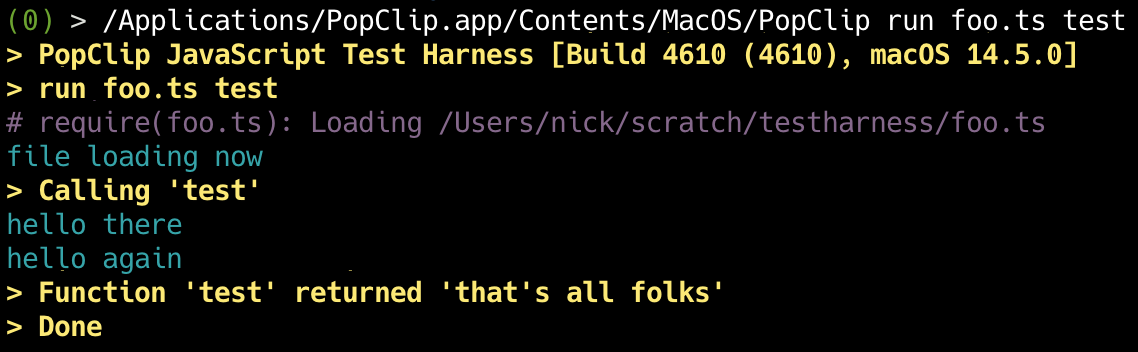
Module-based extensions
Standalone page: /dev/js-modules
Module-based extensions let you use the full power of JavaScript or TypeScript to define your PopClip extension. This allows you use code to construct properties like options at load time, and to define actions dynamically, for example to generate titles or icons in response to the input text.
When you provide a config file called Config.js or Config.ts, PopClip treats this as a JavaScript or TypeScript module and looks for the extension's properties in the exported object, after first loading static properties from YAML in a comment header.
All properties exported by the module will be merged into the extension's config, overriding any static properties with the same name (except for the static-only properties which cannot be overriden).
The module can also define a population function to dynamically populate the actions.
Snippets as modules
You can also define a module in a snippet by setting module: true.
Example
The following JavaScript snippet defines a complete module-based extension:
javascript
// #popclip
// name: Module Demo
// after: show-result
// language: javascript
// module: true

// this is only run once, at load time
const theNumber = String(Math.floor(Math.random() * 100));

module.exports = {
  actions: [
    {
      title: "The Title",
      icon: `square ${theNumber}`,
      code: (input) => {
        return `The number is ${theNumber}. Your text is: ${input.text}`;
      },
    },
  ],
};
Observe a few things:
- The extension's
nameand the action'safterstep,show-result, are specified in the static config in the header. - At load time, the module generates a random number and saves it in a variable.
- The action has an
iconproperty, displaying the random number in a square. - The module defines its actions by exporting an
actionsarray. See Module actions.
More examples
See the following examples from the PopClip Extensions Directory:
File format
Comment header
In Config.js and Config.ts a YAML comment header must be provided defining the extension's name and any other static-only properties. The header is in the same format as for a snippet (see Snippets - Inverted syntax) except that you do not specify language or module in the header. The file is automatically loaded as a module.
Module format
The module file may be written in JavaScript (.js) or TypeScript (.ts).
The module format is CommonJS. You can either export a single object with module.exports = ... or export individual properties like exports.foo = ....
TypeScript files can use ES Modules syntax, which will be transpiled to CommonJS under the hood. JavaScript files may not use ES Modules syntax.
The exported property names and types are the same as defined in Config, with the execption of actions which has special handling - see Module actions.
Specifying the module file
The module does not have to be loaded from Config.js/Config.ts. Alternatively, you can provide static config in another format (e.g. Config.json) and specify a module file name as follows:
| Key | Type | Description |
|---|---|---|
module | String | The path to a JavaScript (.js) or TypeScript (.ts) file to load. |
Static-only properties
Certain properties of the extension can only be defined in the static config, and cannot be overriden by the module. These are name, icon, identifier, popclipVersion, macosVersion, entitlements, module, showAs, authServiceLabel and offersMultipleInstances.
Module actions
Detailed API reference
A more detailed definition of the action object, action function and population function may be found in the JavaScript API Reference, or in popclip.d.ts, which is the same API as a single TypeScript definitions file.
A module defines its actions by exporting an actions property, which can be either:
- an array of action objects, or
- a population function returning an array of action objects.
Note that a module always provides all the actions for the extension. You cannot mix regular actions and module actions in the same extension.
Action object
Each action object has the same properties as a regular action, with the addition of the following:
| Key | Type | Description |
|---|---|---|
code | Function | A function to run when the action is invoked. See: Action function. |
regex | RegExp Object | You may export a JavaScript RegExp, and PopClip will use this instead of a string regex. |
submenu | Array or Function | An array of action objects to show in a submenu of this action, or a function generating them dynamically. See Submenu functions. |
Action function
The action function is called with the following arguments:
input: same object aspopclip.inputoptions: same object aspopclip.optionscontext: same object aspopclip.context
javascript
{
  code: (input, options, context) => {
    // ... do stuff ...
    doSomething();
    return someResult;
  };
}
javascript
{
  code: async (input, options, context) => {
    // ... do stuff ...
    await doSomethingAsync();
    return someResult;
  };
}
The function may return a string, which will be passed to the after step. Otherwise it should return undefined or null.
The function may optionally be async, and use await.
The function may indicate an error by throwing an exception, as per JavaScript actions.
Population function
Entitlement needed
To use a population function, the dynamic entitlement must be present in the entitlements array in the static config. This cannot be set if the network or script entitlement is also being used.
The population function is set as the actions property of the module. It dynamically supplies actions every time the PopClip bar appears. The population function is called with the same arguments as the action function, and it returns an array of action objects.
javascript
// #popclip dynamic example
// { name: Dynamic Title, entitlements: [dynamic], lang: js, module: true }
exports.actions = (input, options, context) => {
  return [
    {
      title: `<${input.text.slice(0, 10)}>`,
      code: (input, options, context) => {
        popclip.showText("Hi from Action");
      },
    },
  ];
};
typescript
// #popclip dynamic example
// { name: Dynamic Title, entitlements: [dynamic], lang: ts, module: true }
export const actions: PopulationFunction = (input, options, context) => {
  return [
    {
      title: `<${input.text.slice(0, 10)}>`,
      code: (input, options, context) => {
        popclip.showText("Hi from Action");
      },
    },
  ];
};
Restrictions during population
The population function has the following limitations:
- Cannot access the network —
XMLHttpRequestis unavailable. - Cannot call functions on the
popclipglobal object. - Cannot call
sleep(),setTimeout()orsetInterval(). - Cannot access
secretoptions inpopclip.options.
Properties on the popclip global (popclip.input, popclip.context, popclip.options and popclip.modifiers) may be read during population — with the exception of secret options.
Functions on the util global may be called freely during population.
Submenu functions
An action object may define a submenu property, giving the action a submenu of child actions — see Submenus. The value may be a static array of action objects, or a function.
If a function is supplied, it is called at the moment the submenu opens, to generate the submenu's actions dynamically. It has the same signature and limitations as a population function, and likewise requires the dynamic entitlement.
typescript
// #popclip submenu function example
// { name: Sub Demo, icon: circle filled 3, entitlements: [dynamic], lang: ts, module: true }
export const actions = [
  {
    title: "Word Menu",
    // called when the submenu opens: one child action per word, capped at 3
    submenu: (input) => {
      return input.text
        .split(/\s+/)
        .slice(0, 3)
        .map((word) => ({
          title: word,
          code: () => popclip.showText(`You chose: ${word}`),
        }));
    },
  },
];
Abbreviated forms
The action property
If the module defines only a single action, it may be exported as the action property instead of in an actions array. For example:
javascript
// #popclip
// { name: Single Action, lang: js, module: true}
exports.action = {
  code: () => {
    popclip.showText("hi mom!");
  },
};
typescript
// #popclip
// { name: Single Action, lang: ts, module: true}
export const action: Action = {
  code: () => {
    popclip.showText("hi mom!");
  },
};
Action function shorthand
If the action object has only a code property, it may be exported as a function instead of an object. For example:
javascript
// #popclip
// { name: Action Function, lang: js, module: true}
exports.action = () => {
  popclip.showText("hi mom!");
};
typescript
// #popclip
// { name: Action Function, lang: ts, module: true}
export const action: ActionFunction = () => {
  popclip.showText("hi mom!");
};
Authenticating to external services
Standalone page: /dev/auth
Extensions that talk to an external service on the user's behalf usually need a credential of some kind. This page describes the tools PopClip provides for signing in to services and storing secrets.
The simplest way: an API key option
If the service just needs an API key that the user can obtain and paste in, you don't need any special machinery. Define an option of type secret: it appears as a concealed text field, and PopClip stores the value in the user's keychain.
For anything more involved — validating a username and password, or an OAuth sign-in — use the auth function, described next.
The auth function
A module-based extension can define an auth function. When it does, PopClip shows a Sign in button in the action's settings UI, and calls the function when the user clicks it:
ts
type AuthFunction = (
  info: AuthInfo,
  flow: AuthFlowFunction,
) => Promise<string | AuthResult>;
The info object carries the values of the extension's username and password options (if defined), the extension's name and identifier, and a redirect URL for use in OAuth flows.
Whatever the function returns is saved in the user's keychain as the extension's authsecret, and the settings UI switches to a signed-in state with a Sign out button (which clears the stored secret). Return a plain string, or an AuthResult object { secret, label, expiresIn } — the label is shown as the signed-in account identifier, and expiresIn (a token lifetime in seconds) makes PopClip treat the sign-in as expired after that time.
Username and password sign-in
For services that authenticate with a username and password, define options with the identifiers username and password. PopClip passes their values to the auth function in info. An option of type password is never stored — it exists only to be passed to the auth function.
The Pinboard extension uses this pattern to retrieve the user's API token:
ts
export const options: Option[] = [
  { identifier: "username", type: "string", label: "Username" },
  { identifier: "password", type: "password", label: "Password" },
];

export const auth: AuthFunction = async (info) => {
  // validate the credentials by fetching the user's API token
  const response = await axios.get(
    "https://api.pinboard.in/v1/user/api_token",
    { auth: info, params: { format: "json" } }, // HTTP basic authentication
  );
  return response.data.result;
};
secret vs password options
Both option types conceal their input; the difference is what happens to the value. A secret option is stored in the user's keychain, for a credential the extension keeps and uses — typically a pasted API key. A password option is never stored: the auth function uses it once to obtain a token from the service, and only the token is kept. PopClip never retains the user's actual password.
OAuth sign-in
For OAuth authorization-code flows, use the flow callback passed as the auth function's second parameter. Calling it opens the service's authorization page in the user's browser, with your parameters appended. After the user approves, the service redirects the browser to the info.redirect URL — a local address that PopClip itself serves — and flow resolves with the query parameters you named in expect:
ts
export const auth: AuthFunction = async (info, flow) => {
  // step 1: the user authorizes the extension in their browser
  const { code } = await flow(
    "https://example.com/oauth/authorize",
    { client_id, redirect_uri: info.redirect },
    ["code"],
  );
  // step 2: exchange the authorization code for an access token
  const { data } = await axios.post("https://example.com/oauth/token", {
    grant_type: "authorization_code",
    code,
    client_id,
    client_secret,
    redirect_uri: info.redirect,
  });
  return { secret: data.access_token, expiresIn: data.expires_in };
};
The Raindrop.io extension is a complete working example of this pattern.
For services still using OAuth 1.0a request signing, the oauth-1.0a library is bundled in PopClip's JavaScript environment.
Using the stored secret
Action code reads the stored secret as options.authsecret. It has one special behaviour: accessing it while the extension is not signed in throws an error, so an action that requires sign-in fails with a "Not signed in" message rather than proceeding with an empty credential.
ts
export const action: Action = {
  requirements: ["url"],
  async code(input, options) {
    await axios.post(
      "https://example.com/api/save",
      { url: input.data.urls[0] },
      { headers: { Authorization: `Bearer ${options.authsecret}` } },
    );
    popclip.showSuccess();
  },
};
If the service rejects the stored secret — an expired or revoked token, say — throw the error returned by popclip.signInRequiredError(). PopClip clears the saved secret, so the extension shows as signed out, and opens the settings UI for the user to sign in again. (The related popclip.settingsRequiredError() sends the user to settings without signing them out — for example when a required option is missing.)
Registering your extension as a client app
Before you can use OAuth, you have to register an application with the service to obtain a client identifier. A few notes on doing that as an extension author.
Register in your own name. The registration is yours: you hold the credentials, and the service will contact you about quotas, policy changes and anything it considers abuse. Please don't register as just "PopClip", or use the PopClip icon.
Choose a name that tells the user what they are approving. The name you register appears on the authorization page shown when the user signs in, so it is what they will use to decide whether to trust the request. Something like "Raindrop for PopClip (community extension)" or "Jane's Raindrop Clipper for PopClip" identifies both the integration and its author.
Link to your own repository. Where the service asks for a homepage or support URL, give the extension's own GitHub repository or web page, not this website.
Register as a native or desktop app. The redirect URL you need is the one supplied as info.redirect, which looks like http://localhost:58906/callback/com.example.popclip.extension.myextension/auth. Some services accept a localhost redirect only for apps registered as native or desktop clients, so choose that type if you are asked.
If your extension is later published in the PopClip Extensions Directory, get in touch and we can revisit the registration then.
Client secrets, and util.clarify
If your registration gives you a client secret, you have a small problem: there is nowhere to hide it. Client secrets have to ship inside the extension, and an extension is source code that anyone can read.
The util.clarify function is used here. It deciphers a JSON object that has been lightly obscured — stringify, then Base64, then ROT13 — so the credentials at least don't sit in the source as plaintext, where they could be scraped or indexed:
ts
import { credentials } from "./client.json"; // { "credentials": "<obscured string>" }
const { client_id, client_secret } = util.clarify(credentials);
To be clear: this is obfuscation and not security. Anyone determined can recover the values by reversing the process. That is an accepted limitation. Client credentials are embedded in ordinary apps too, and can be extracted from them just the same. Publish accordingly: treat an extension's client credentials as protected from casual exposure rather than secret.
To prepare an obscured blob, apply the reverse of clarify to your JSON: encode it as Base64, then apply ROT13 to the result. For example, with Node:
js
// obscure.mjs — run with: node obscure.mjs
const credentials = { client_id: "abc123", client_secret: "shhh" };
const base64 = Buffer.from(JSON.stringify(credentials)).toString("base64");
const obscured = base64.replace(/[a-z]/gi, (c) =>
  String.fromCharCode(c.charCodeAt(0) + (c.toLowerCase() < "n" ? 13 : -13)),
);
console.log(obscured);
// -> rlWwoTyyoaEsnJDvBvWuLzZkZwZvYPWwoTyyoaEsp2IwpzI0Vwbvp2ubnPW9
The printed string is what goes in the extension — the value of the credentials key in the client.json of the example above — ready to be read back with util.clarify at load time.
Finally, note that some services support PKCE, a variant of OAuth designed for apps that cannot keep secrets. With PKCE there is no client secret at all — only the client identifier ships in the extension. If the service you are integrating with offers it, prefer it: the less there is to obscure, the better.
Related config keys
auth service label— a label for the service, used in prompts such as "Sign in to your [label] account". Defaults to the extension's name.
Developer Changelog
Standalone page: /dev/changelog
Detailed notes on changes to PopClip's extensions programming interface will be kept in this file.
The format is based on Keep a Changelog.
Version 2026.8 (6159)
Added
- Files with
.js,.ts, and.yamlextensions can now be opened directly as extension snippets, the same as.popcliptxtfiles. PopClip appears in the Open With menu for them, without becoming their default application. You can also drag the files onto the PopClip menu bar icon. - New
scriptentitlement, required to use the new AppleScript-running JavaScript methods below. Likenetwork, it cannot be combined withdynamic. - JavaScript: new popclip.runAppleScript() and popclip.runAppleScriptFile() methods run an AppleScript.js
const result = await popclip.runAppleScript( 'on greet(a)\nreturn "hello " & a\nend greet', { handler: "greet", parameters: [popclip.input.text] }, ); - JavaScript: new popclip.runShortcut() method runs a macOS Shortcut by name.js
const summary = await popclip.runShortcut("Summarize Text", { input: popclip.input.text, }); - JavaScript: new popclip.revealFile() method shows a file or folder in the Finder. Takes an absolute path — the kind found in
popclip.input.data.paths— with a leading~expanded.jspopclip.revealFile(popclip.input.data.paths[0]); popclip.revealFile("~/Downloads"); - JavaScript: new dictionary functions on the
utilglobal: util.hasDictionaryDefinition() and util.getDictionaryDefinition(), looking words up in the same dictionaries as the macOS Dictionary app. - JavaScript: new spelling functions on the
utilglobal: util.checkSpelling(), util.getSpellingGuesses(), util.getSpellingLanguages() and util.getPreferredSpellingLanguages(), via the system spell checker.jsconst guesses = util.getSpellingGuesses(popclip.input.text, { language: "en", limit: 5, }); - Key Press actions: new
key combo targetproperty, choosing where PopClip posts the key events: to the session event tap (session, the default, and what PopClip has always done), to the process of the application the action is acting on (app), or to the HID event tap (hid). See Key Press actions. - JavaScript: popclip.pressKey() takes an options object as its third argument, with the same
targetchoice:popclip.pressKey('command b', 0, { target: 'app' }). - JavaScript:
popclip.pressKey()now returns a promise that resolves once the press has been made. Await it when a later step depends on the press having completed. - JavaScript: new popclip.pressKeys() method presses a sequence of key combos, with optional waits, as one unit:
await popclip.pressKeys(['command space', 'wait 100', 'command v'], { target: 'session' }). Entries take the same forms askey combosconfig entries; the sametargetoption aspressKeyapplies to the whole sequence. - New action properties:
wants primary display: the action asks to be the one centred above the pointer when the popup appears.wants initial display: for an action with a submenu, the submenu asks to be already open when the popup appears.
- New
shell script rationaleconfig field: a brief explanation of why an extension needs a Shell Script action instead of JavaScript. Ignored by the app; the Extensions Directory requires it for submissions with a Shell Script action.
Changed
- JavaScript:
popclip.pasteText(),popclip.pasteContent(),popclip.copyText(),popclip.copyContent(),popclip.performCommand()andpopclip.share()now return promises. Previously documented as returning nothing, so this is purely additive — existing calls are unaffected. Await one when a later step depends on it having finished:jsawait popclip.performCommand("copy"); - Documentation: removed the documented claim that population functions may not read
popclip.context.browserUrlandpopclip.context.browserTitle, which was incorrect. - Documentation: added the previously undocumented
keywordsconfig field to the top level properties table. It supplies extra search words for the extension's directory listing.
PopClip 2026.7 (5992)
Added
- Actions can now have submenus, using the new
submenuproperty. A submenu is defined by an array of child actions, or (in JavaScript extensions) a population function that generates the actions dynamically when the submenu opens. The function form requires thedynamicentitlement. See Submenus and Submenu functions. - New top-level config properties:
show as: set the action's default presentation toiconortext.auth service label: a label identifying the service to be signed in to, shown in the action's settings UI.offers multiple instances: controls whether the user can duplicate the action to create multiple instances.
- New keys for option dictionaries:
multiline: forstringoptions, show a multi-line text field.allow other: formultipleoptions, adds an "Other…" choice allowing the user to enter a free-text value.allow none: formultipleoptions, adds a "None" choice whose value is the empty string.
- Option
descriptionfields can now contain clickable links, written either as bare URLs or in Markdown syntax:[label](https://example.com). - URL actions: added
spaces as plusproperty. Iftrue, spaces in the query are encoded as+instead of%20(some search engines, e.g. Amazon, expect this). - JavaScript: The auth function can now return an AuthResult object
{ secret, label, expiresIn }instead of a bare secret string. Thelabelis displayed as the signed-in account identifier (e.g. username/email), andexpiresIn(token lifetime in seconds) lets PopClip treat the sign-in as expired after that time. - JavaScript: New methods popclip.signInRequiredError() and popclip.settingsRequiredError() return errors that an action can throw to send the user to the extension's settings UI. The former also clears the stored
authsecret, signing the extension out. - JavaScript: Added popclip.openTemplateUrl() method.
Changed
- JavaScript: The extension's
nameandiconare now static-only properties — they can no longer be defined dynamically by a module. - Holding Option (⌥) when clicking a URL or search action now performs a "verbatim" search: the query is wrapped in double quotes so the search engine treats it as an exact phrase. (This replaces the old
alternate urlmechanism — see below.) - JavaScript: Updated bundled npm libraries to latest versions.
Removed
- The
alternate urlproperty of URL actions has been removed. If present in a config, it is now ignored. The Option (⌥) key now triggers the verbatim search behaviour instead. - JavaScript: Removed the
util.buildQueryUrl()function. Usepopclip.openTemplateUrl()or construct URLs with the standardURLclass instead.
PopClip 2025.9.2 (5155)
- Disable JavaScript inspectability in Safari by default. (Enable with
defaults write com.pilotmoon.popclip EnableJSInspection -bool true.) - JavaScript: Updated bundled npm libraries to latest versions.
- JavaScript: Added
valibotandfast-plistto bundled npm libraries.
PopClip 2025.9 (5118)
There were no changes to the extension programming interface in this release.
PopClip 2024.12 (4688)
Changed
- JavaScript extensions can access
localhostand local network addresses (unqualified domains and.localdomains) usinghttp:connections. Anhttps:connection is still required to connect to fully qualified domains. - TypeScript sources are now transpiled with sucrase, instead of the full typescript library. This reduces the size of the PopClip application by nearly 1MB.
- When calling PopClip from the command line (to use the JavaScript test harness), it now prints usage information if missing or incorrect arguments are provided, instead of ignoring them.
Added
- Added
oauth-1.0ato built-in NPM modules. - Added util.hmac() function for HMAC calculation (useful for extensions that need to use OAuth 1.0a).
- Added util.getRandomValues() and util.randomUuid().
- The popclip.openUrl() method:
- now has an
activateoption to control whether the target application is brought to the front. Default istrue. - can now accept a URL object instead of a string. When a URL object is passed, the URL is serialized internally with
%20instead of+for spaces. This solves a mildly annoying pain-point for extensions that use URL objects to construct URLs.
- now has an
- The popclip.copyText() method now has a
notifyoption to control whether the "Copied" indicator is shown when the text is copied. Default istrue. - JavaScript API now has a global
TextEncoderclass which acts as a shim approximating the standard Web API class. This improves compatibility with some NPM modules. - Added
isurlrequirements key. This requires that the selected text is a single URL (as opposed to text containing a url, which the existingurlkey specifies). This makes thepopclip.input.isUrlproperty added in version 2024.5 available to non-JavaScript extensions.
PopClip 2024.5.2 (4615)
Changed
- The JavaScript test harness has been improved.
- Now loads a module from a file, and optionally invokes a named function in that module.
- Now supports TypeScript files.
- Improved the tool output format.
- Changed the command name from
runjstorun.
Added
- The
popclip.showTextmethod now takes an optionalstyleoption which can be eithercompactorlarge. The default style iscompact, which is the same as the previous behavior. Thelargestyle is a new style that shows the text full-screen in a "large type" display.
PopClip 2024.5 (4578)
Added
- JavaScript extensions can now be debugged using the Safari Web Inspector. This lets you inspect and debug your code while it is running inside PopClip. The inspector can be accessed from Safari's Develop menu, which must be enabled with the "Show features for web developers" in Safari's Advanced settings.
- Added new
popclip.input.isUrlproperty that indicates whether the input text is a single a web URL (as opposed to text containing one or more URLs). This is useful for extensions that have different actions depending on whether the input is a URL or not. - Added
popclip.share()function to send text to other apps using macOS Sharing Extensions. I will soon update the official Notes, Messages and Reading List extension to use this feature.
Fixed
- Extension requirements keys
path,url,emailnow properly propagate their matched text as the input to Service actions.
PopClip 2024.3 (4508)
Added
- The text string format can now be used for all kinds of icons, e.g.
square filled symbol:flame. - Added
strikemodifier for icon strings, which overlays a strike-out effect. - Added
flip_x,flip_y,move_x,move_y,scaleandrotatemodifiers for icon strings. - Emoji text icons now render in color.
- In the JavaScript environment,
popclip.input.regexResultis an array containing the full result of the regex match, including any capture groups. Unlike previous PopClip versions, this array is now always available regardless of whether the regex was specified in the static config (as an ICU regex string) or in a module (as a JavaScript RegExp object). - Added option type
secretfor storing a string in the macOS Keychain instead of in the PopClip preferences file. This is useful for extensions that save sensitive data such as a password or API key.
Changed
- Config.json files are now parsed with a JSON parser instead of a YAML parser.
- All extensions must now have a static config defining at least
name. An override name may also be specified in the dynamic (JS module) config. - If an extension defines an
identifier, it must be in the static config. Defining an identifier in dynamic config is now a load error. - Extension identifiers now must begin and end with a letter or number. Separators (period, hypen or underscore) are allowed in the middle but not multiple in a row.
- Renamed
flip horizontalandflip verticaltoflip xandflip yrespectively. - Option labels are now optional. If omitted, the option
identifieris used as the label. - Identifier prefix
app.popclip.is now reserved for signed extensions only. - When an action specifies both a
regexand aurl,pathoremailrequirement, the requirement is now applied first, and then the regex is applied to the output of the requirement. - Unsigned extensions no longer purge all existing options upon installation. Instead, only options of type
secretare purged, and only if an unsigned extension replaces a signed extension with the same identifier. - For Setapp edition only: the storage location for Extensions has changed from
~/Library/Application Support/com.pilotmoon.popclip-setapp/Extensionsto~/Library/Application Support/PopClip/Extensions. - Updated all embedded NPM modules to latest versions.
Documentation
- Updated all documentation to reflect the changes in this release. In particular, the Icons page has been fully rewritten to reflect the new icon string features.
PopClip 2023.9 (4225)
Added
- TypeScript can now be used as the source language for JavaScript actions and module-based extensions. This is done by specifying a file with the
.tsextension in thejavascript fileormodulefield. For snippets, specifytypescriptin thelanguagefield. PopClip ships with a TypeScript type definitions file,This has now been removed as of v2024.5. Instead, use the @popclip/types NPM package. You can configure your dev envionment to reference this to aid in developing your own extensions.popclip.d.ts, inside the app bundle.- URL actions can now specify an optional
alternate url, invoked by holding Option (⌥). - URL actions now have an optional
clean queryflag to clean up newlines and whitespace in the text before inserting into the URL.
Changed
- Updated the versions of several of the built in NPM modules.
- Key Press actions no longer automatically wait 100ms between keypresses. Instead, use
wait <milliseconds>to add a delay if needed. See Wait between keypresses. - The Unsigned Extension warning is now only shown for extensions with Shell Script actions, AppleScript actions, or JavaScript actions with entitlements.
- In URL actions, leading and trailing whitespace and newlines are now always trimmed before URL-encoding.
Documentation
- Amended documentation in various places to reflect the new TypeScript support.
- Added Using
require()to the JavaScript environment documentation. - Added Abbreviated forms to the module-based extensions documentation.
Documentation Update, 2023-08-30
- The developer documentation moved from GitHub to https://www.popclip.app/dev/.
- The previous single README was split into multiple pages.
- All parts revised and updated; more examples added.
- Added brand new documentation for Module-based extensions.
PopClip 2023.7 (4151)
There were no changes to the extension programming interface in this release.
PopClip 2022.12 (4069)
Added
- Extensions and snippets can now use icons from Iconify, which provides over 100,000 open source icons. Specify them like this:
iconify:ph:rainbow-bold. - Snippets can now be added as a comment header to any text file, with the result that the entire file becomes installable as a JavaScript, Apple Script or shell script extension. (See Header Snippets in the main Readme.)
- PopClip will install an extension from a
.popcliptxtfile. This is basically a snippet in a text file. - Added
shell scriptfield for specifying a shell script as a literal string. This allows shell scripts to be put directly in snippets. - Added optional
stdinfield for shell scripts, to allow passing a value to the script via stdin. - Allows the AppleScript source to be specified as
applescriptstring orapplescript filewhen calling a named handler. - A
key combostring can now specifynumpadas a modifier, to denote pressing a key on the numeric keypad. - Added options for icon drawing including
flip horizontal,flip verticalandpreserve aspect. - Added built-in core-js shim inside PopClip to allow modern JavaScript features on all target platforms.
Changed
- Increased maximum selectable snippet length from 1000 to 5000 characters.
- The
script interpreterfield has been renamed tointerpreter. - Shell script files are no longer executed with
/bin/shby default. An interpreter must be explicitly specified. - The
preserve image colorfield has been renamed topreserve color. - The
parametersfield in theapplescript calldictionary has been renamed toparams. - Icons are now drawn in a square canvas with uniform height and width, unless the new
preserve aspectflag is set. - PopClip now enforces that the extension identifier may contain only A-Z, a-z, 0-9, period (.), and hyphen (-).
- Updated the versions of several of the built in NPM modules.
- When an action combines both
requirementsandregex, the requirements are now applied first, and then the regex is applied to the result.
Fixed
- The snippet detector now correctly recognizes snippets written in YAML flow syntax (i.e. with braces
{}), as well as JSON syntax (since valid JSON is valid YAML). - Fixed never-ending spinner with some Shortcuts actions.
PopClip 2022.5 (3895)
Added
- Added the ability to execute pre-compiled AppleScript
.scptfiles, and to invoke handlers within them with parameters. - Key Press extensions can now take an array of key combos, to press a sequence of keys.
- Extended the key code string format to simplify specifying non-character keys, and raw key codes. For example:
command tab. - Brought back the
restore pasteboardfield for actions. - Added a 'test harness' mode to PopClip, for testing your JavaScript code in the PopClip environment. Run as:
/Application/PopClip.app/Contents/MacOS/PopClip runjs <filename> - Additions to the JavaScript programming environment:
- Added RTF processing features (via RichText class object).
- Added locale information to the
utilobject. - Added a promise-based global function
sleep(e.g.await sleep(1000)). - Supports the new key combo string format in the
popclip.pressKey()method. - Improvements to the XMLHttpRequest implementation, including adding
BlobandArrayBuffersupport.
Changed
- For Key Press extensions, there is now a 100ms delay after each key press.
- Updated the versions of some of the bundled npm libraries for JavaScript extensions. (There should be no breaking changes.)
PopClip 2021.11 (3785)
Added
- PopClip will now load either JSON (
Config.json) or YAML (Config.yaml) as an alternative to an XML Property List (Config.plist) for the extension config file. The same field names are used in each of the three formats, and they each define the same logical structure. The choice of format is just a matter of which you prefer. (I'm currently leaning towards YAML for the best readability.) - Field names for use in the Config files are now defined in a spaced lowercase form such as
applescript file. However, PopClip will accept field names in all common forms including the original "spaced capitalized" form (e.g.AppleScript File) and camel case (e.g.applescriptFile). - The
URLfield for Search extensions will now accept***in addition to{popclip text}as the placeholder. - The text-based icon format has a new "magnifying glass" style, intended for search extensions.
- The text-base icon specification format has changed since 2021.10 (see README).
- The
Script Interpretercan now be specified as a bare executable name (e.g.perl), and PopClip will locate the tool in thePATHof the user's default shell. - Added a new field called
AppleScript, allowing AppleScripts to be specified as a verbatim text string in the config file (rather than as a separate file viaAppleScript File). - Allow key combos to be specified as a text string, for example
command option T. - Added an
emailsrequirement to specify one or more email addresses. - Added
POPCLIP_EMAILSandPOPCLIP_PATHSfields. - Added Shortcut action type, to run a named Shortcut on macOS 12.0.
- Added JavaScript action type.
Changed
- Removed the
Extension ...andOption ...prefixes from field names (e.g.Extension Nameis now justName). The old names will continue to work. - The extension's
Identifierand/orNameare now optional. If either is omitted, popclip will generate one from the .popclipext package name. - An action's
Titleis now optional. If omitted, the action takes the extension's name as its title. - An action's
Iconis now optional. If omitted, the action takes the extension's icon (if any) as its icon. - The
Actionsarray is now optional. An extension with a single action may now be specified at the top level of the config file, without a separate action dictionary. - Renamed
Blocked AppstoExcluded Apps,Regular ExpressiontoRegex,Pass HTMLtoCapture HTML,Required Software VersiontoPopClip Version, andRequired OS VersiontoMacOS Version. The old names will continue to work. - Renamed the requirements
httpurlandhttpurlstourlandurls. - When URLs without a scheme prefix are detected in text, PopClip now defaults to https instead of http.
- Changed the text icon specification format. (Docs todo.)
Note
My goal with these recent changes is to drastically lower the barrier of entry for users creating their own extensions. The changes mean that extensions can now be defined with fewer fields and less structure.
As the cherry on top of that, PopClip now has a new built in action for installing extensions from selected text. It activates when you select text starting with # popclip followed by a YAML extension definition. The extension must be a URL, Service or Key Press extension. Here is an example:
yaml
# popclip extension to search Emojipedia
name: Emojipedia
icon: search filled E
url: https://emojipedia.org/search/?q=***
This means simple extensions can be shared simply by plain text in emails, on websites etc. Extensions shared this way don't also show an unsigned extension warning.
There is limit of 1000 characters for this. (If you are doing anything requiring more than that, you should probably be creating a packaged extension.)
PopClip 2021.10 (3543)
Added
- Executable shell scripts now have the user's
PATHset in the script variables. - Brought back
Preserve Image Color.
Changed
- The
Appspecifier can now be set on individual actions as well as at the root level.
Deprecated
TheReverted - see later changes to this field.Script Interpreterfield is deprecated.
PopClip 2021.9 (3510)
Added
- PopClip now supports SVG image files as well as allowing you to specify an image as a SF Symbols identifier or to generate an icon from up to 3 letters of text.
- PopClip now provides an HTML and a Markdown version for all text selections, when
Pass HTMLis set. When the content is not HTML backed, the HTML and Markdown is generated from the selected RTF or plain text content. - Added
POPCLIP_MARKDOWNfield to contain the markdownified HTML. - Added
POPCLIP_ACTION_IDENTIFIERfield. This is passed to the action script allowing you to use the same script for multiple actions. - Added
POPCLIP_FULL_TEXTfield. This is always contains the full selected text in cases wherePOPCLIP_TEXTonly contains the part of text matched by regex or requirement. - Added
Option Value Labelsarray so that the options list can show a display name different to option string value itself. - Added
Option Descriptionfield to add more information in the UI about an option. - Shell scripts with the executable bit set can optionally specify their interpreter with a hashbang, instead of the
Script Interpreterfield.
Removed
- Removed the
htmlrequirement since all selections now come with HTML (as above). Removed theRestored in 2021.10.Preserve Image Coloroption. PopClip now always converts the icon to monochrome.Removed theRestore Pasteboardoption. PopClip now always restores the pasteboard, unless using the*-resultkeys.- Removed the
Long Runningoption. All extensions are now assumed to be potentially long running.
Changed
- The
POPCLIP_HTMLfield is now sanitized to remove CSS, potentially unsafe tags, and to fix invalid markup. The unsanitized HTML is still available in a new fieldPOPCLIP_RAW_HTML. - Renamed the
Image FileandExtension Image Filefields toIconandExtension Icon, respectively. (The old names will also still work but are no longer documented.) - Added
Appdictionary field to specify a single app (since it turns out we hardly ever need to specify more than one app). (Appsarray will still work but is no longer documented.) - The error checking when loading an extension is more robust, so errors such as incorrect field types will now be caught. And you'll get an more specific message about what the problem is.
One more thing... there is also a brand new extension format based on JavaScript. Documentation still "to-do", watch this space!